Grammarly Edu
Getting Started with Grammarly Edu
Welcome to the Getting Started page! This page will walk you through the simple steps to gain access to Fresno State's Grammarly Edu account. Whether you're logging in for the first time or troubleshooting access issues, you'll find everything you need to get started and unlock full access!
Activate Your Account
In this section, you'll find quick guides tailored to your current access type. Whether you're a new user or have an existing account these step-by-step instructions will help you easily gain access based on your specific situation. Please note, that at this time Grammarly Edu is only being offered to Fresno State staff and faculty.
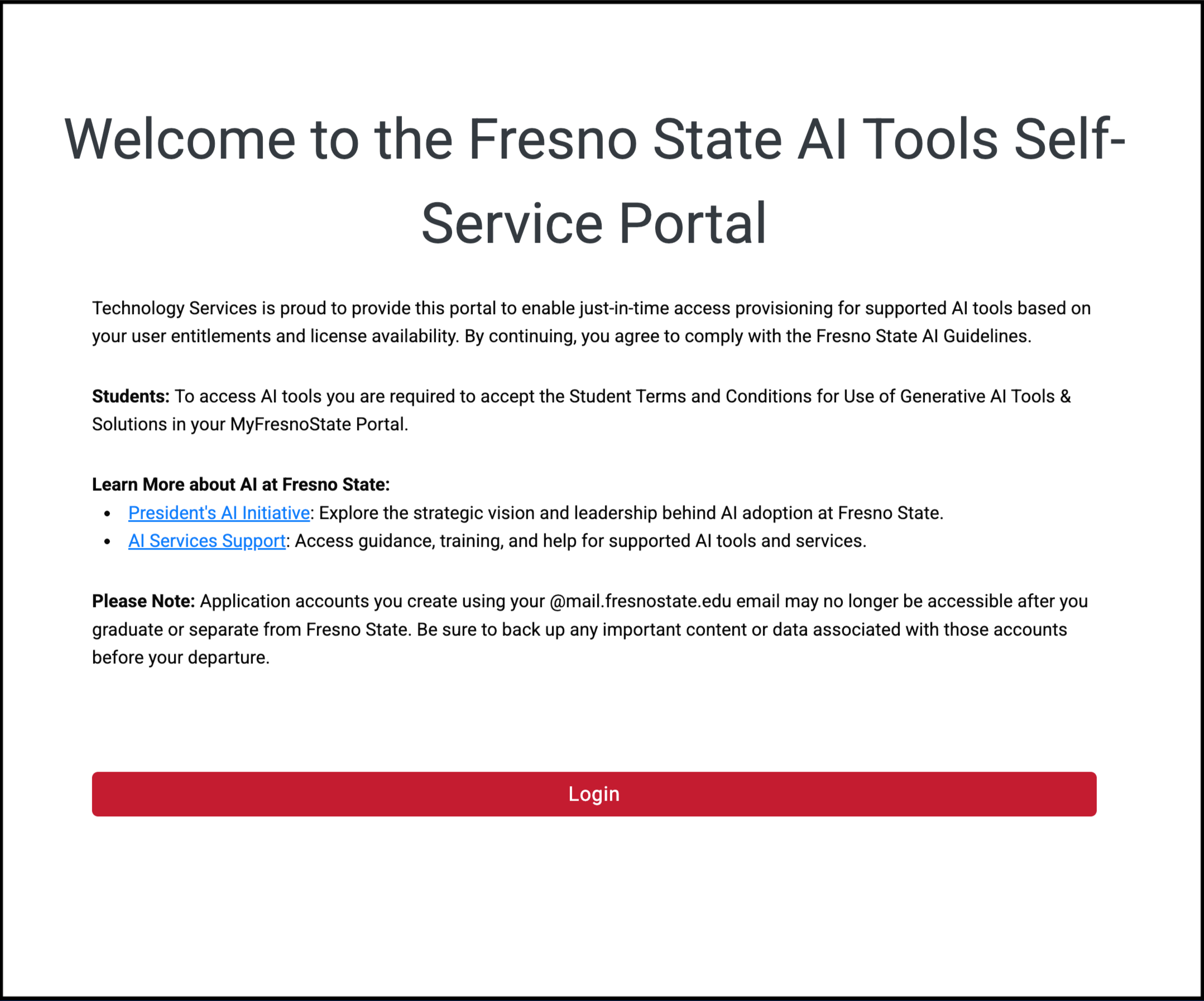
1. First, go to the Fresno State AI Tools Self-Service Portal. Click the Login button to begin.
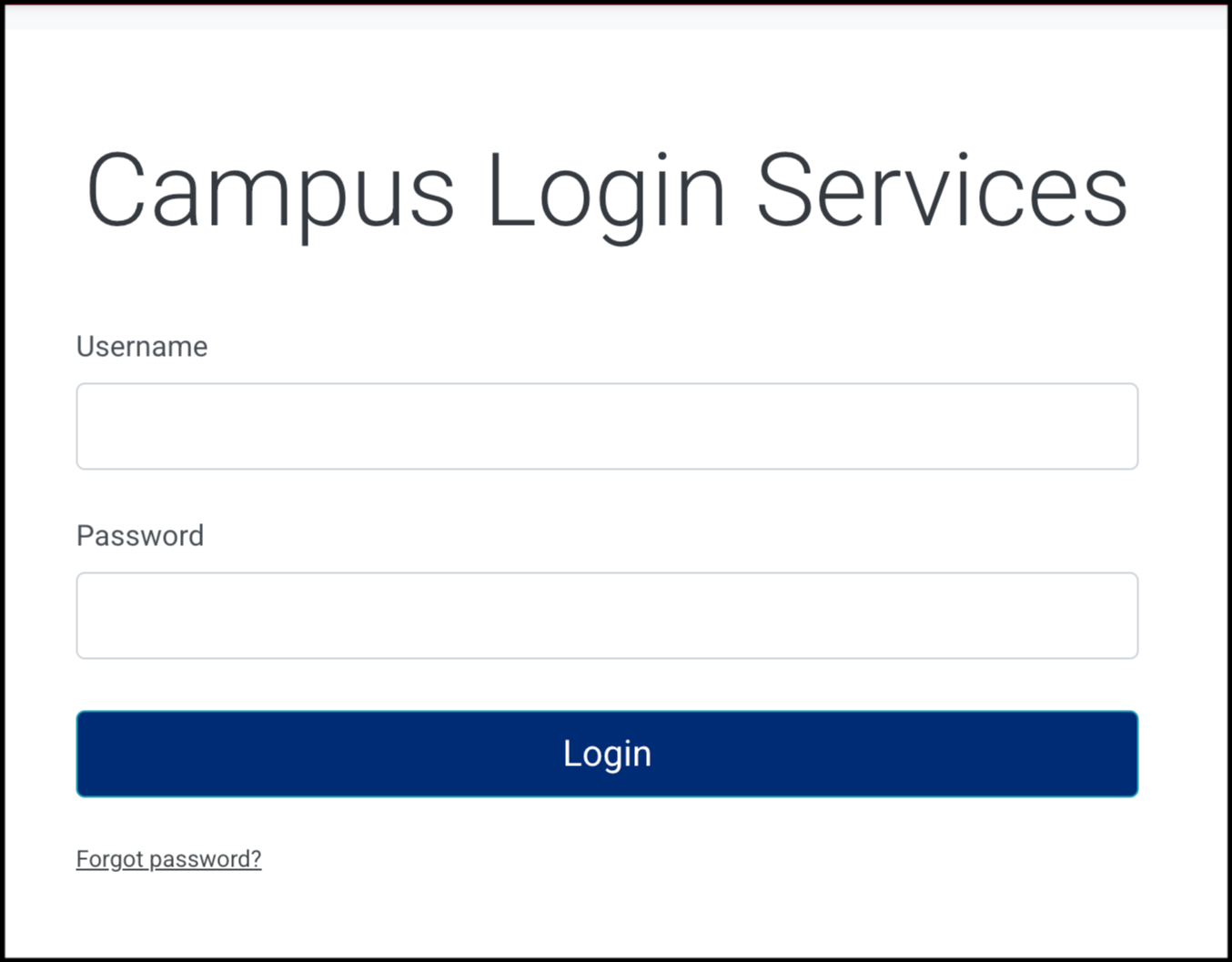
2. You will be directed to the Campus Login Services page. Enter your Fresno State username and password, then click Login.
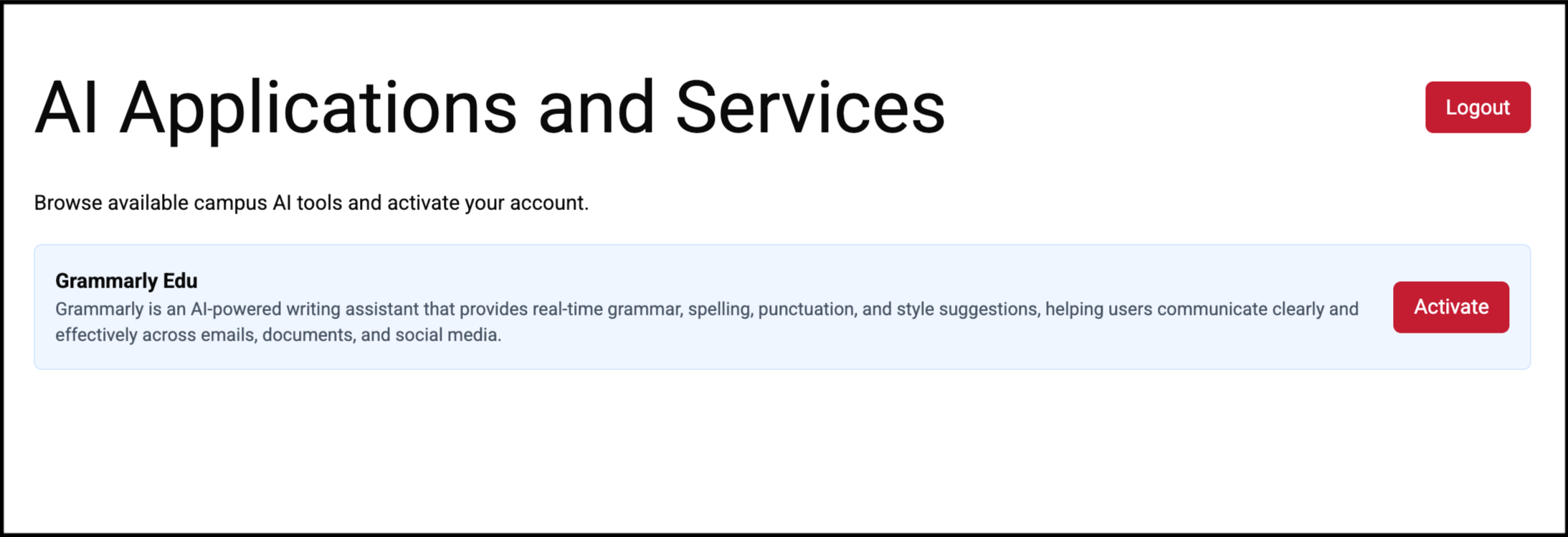
3. You will see a list of AI tools available to you. Find Grammarly Edu and click the “Activate” button.
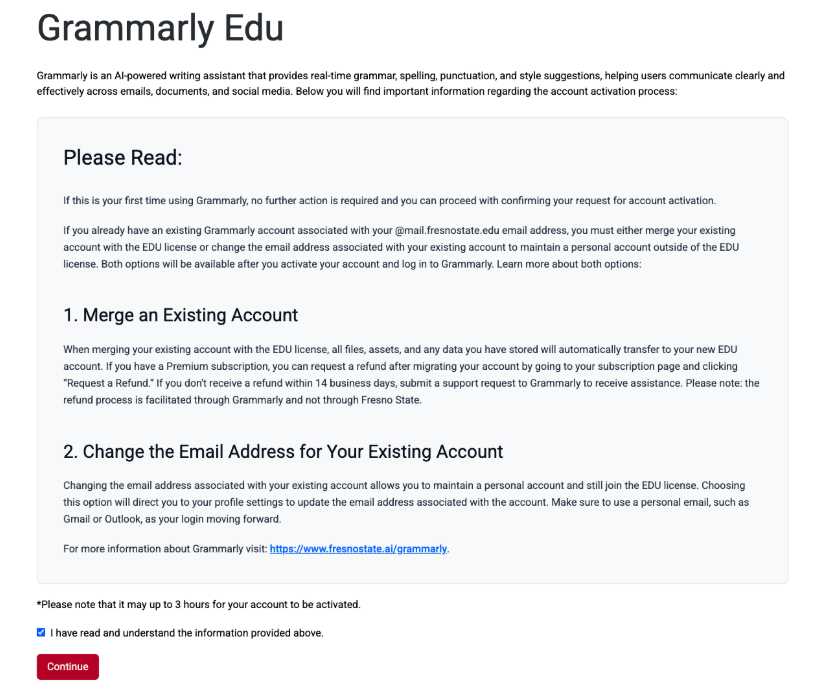
4. Review the account options. Please note that if you already have an existing Grammarly account, you will need to either merge it with the Fresno State EDU license or change the email to keep it separate. You will be able to proceed with either option after you have activated your account. Once reviewed, check the “I have read and understand the information provided above” box and click Continue.
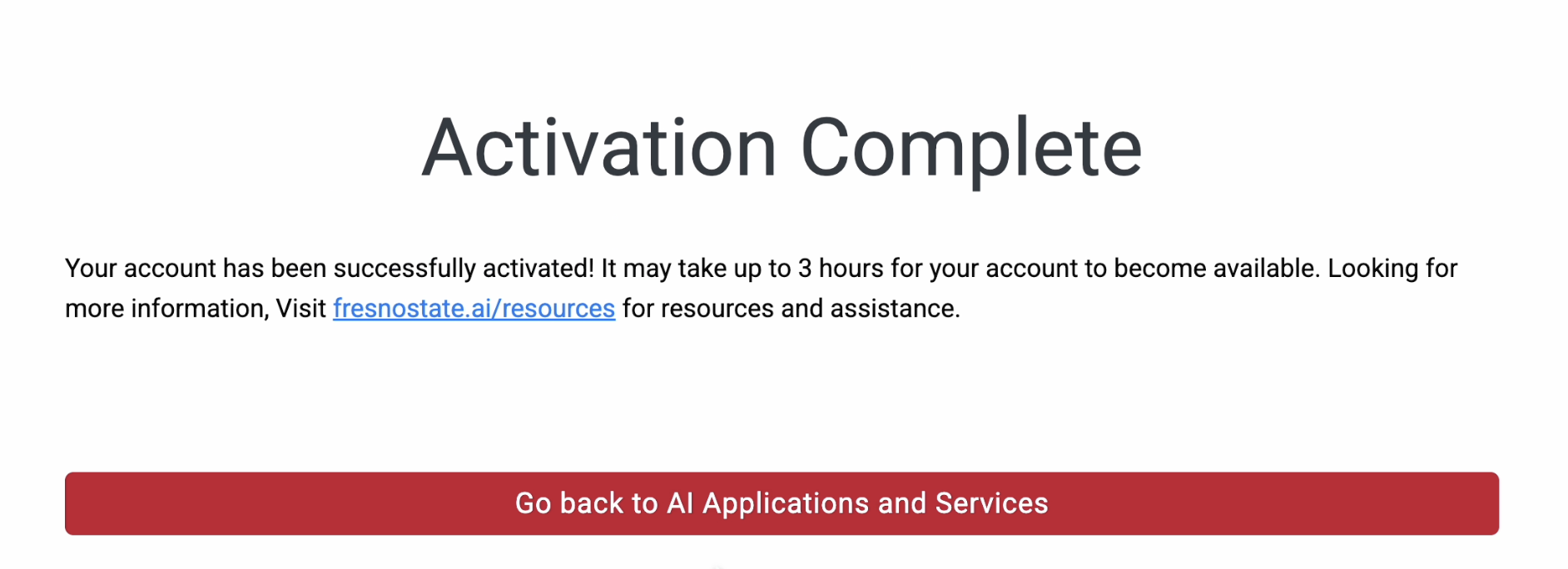
5. You will see a message confirming your account was successfully activated. Click “Go back to AI Applications and Services” to return to the main dashboard.
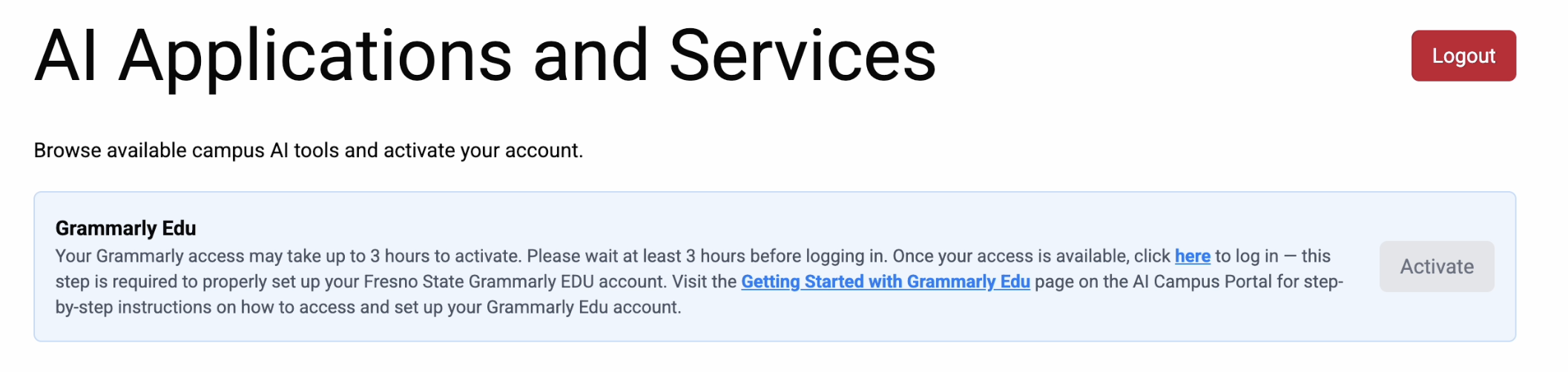
6. Once back on the main page, you’ll now see that the “Activate” button is disabled, which means activation was successful. Review the directions on where to go to access Grammarly then click Logout to finish. You will receive an email once your account is available. Follow the instructions in the email to complete your Grammarly Edu account setup.
1. First, go to the Fresno State AI Tools Self-Service Portal. Click the Login button to begin.
2. You will be directed to the Campus Login Services page. Enter your Fresno State username and password, then click Login.
3. You will see a list of AI tools available to you. Find Grammarly Edu and click the “Activate” button.
4. Review the account options. Please note that if you already have an existing Grammarly account, you will need to either merge it with the Fresno State EDU license or change the email to keep it separate. You will be able to proceed with either option after you have activated your account. Once reviewed, check the “I have read and understand the information provided above” box and click Continue.
5. You will see a message confirming your account was successfully activated. Click “Go back to AI Applications and Services” to return to the main dashboard.
6. Once back on the main page, you’ll now see that the “Activate” button is disabled, which means activation was successful. Review the directions on where to go to access Grammarly then click Logout to finish. You will receive an email once your account is available. Follow the instructions in the email to complete your Grammarly Edu account setup. Please note: You must use the link provided in the email to access Grammarly for the first time after activating your account. This is required to provision your account properly.
7. Click on the link in the email. You will see this screen after you have logged in. Click the “Join your school” button.

8. You may be prompted to answer some questions that will help Grammarly tailor the experience to you. You have the option to skip personalization if that is preferred.
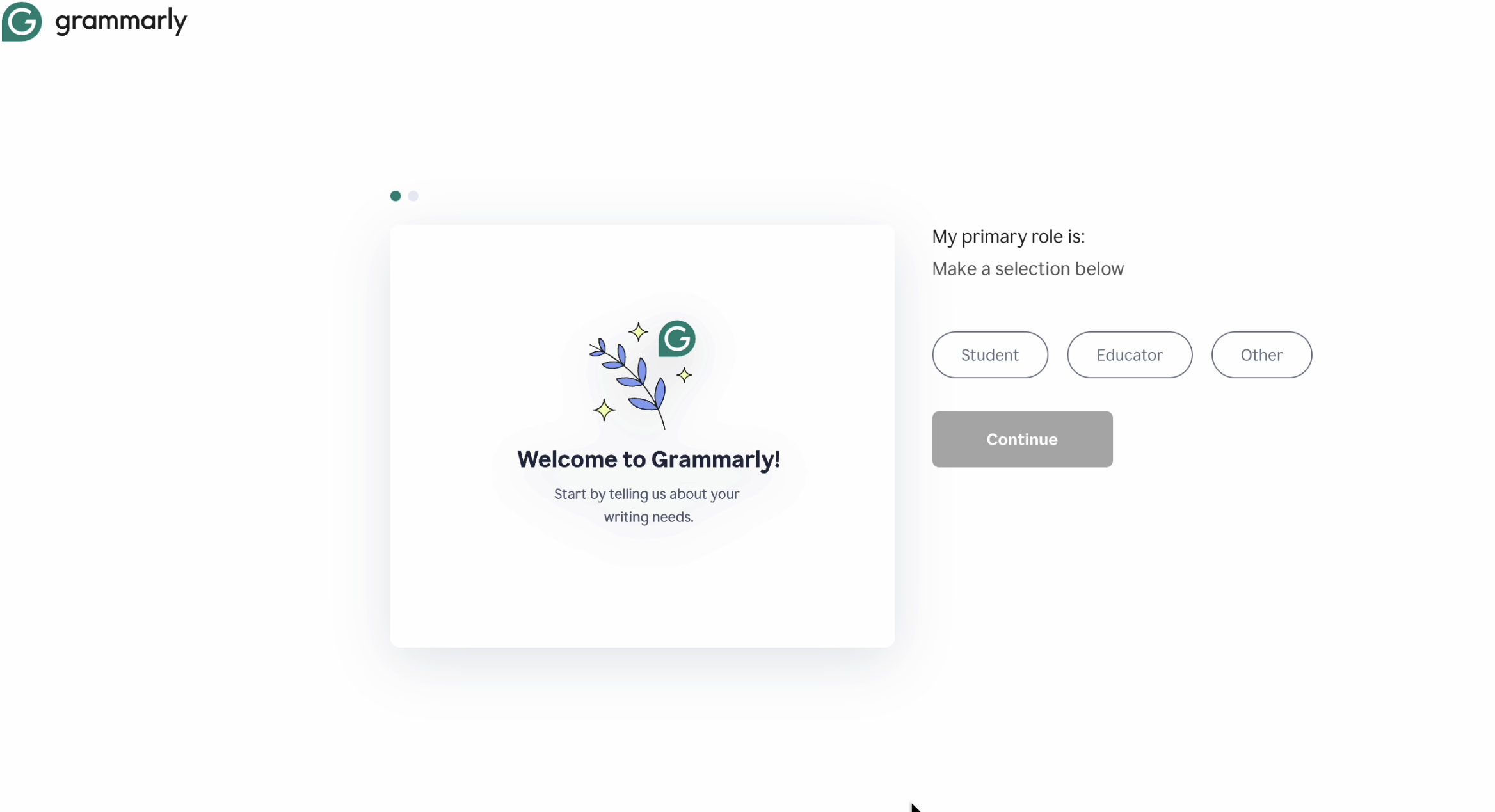
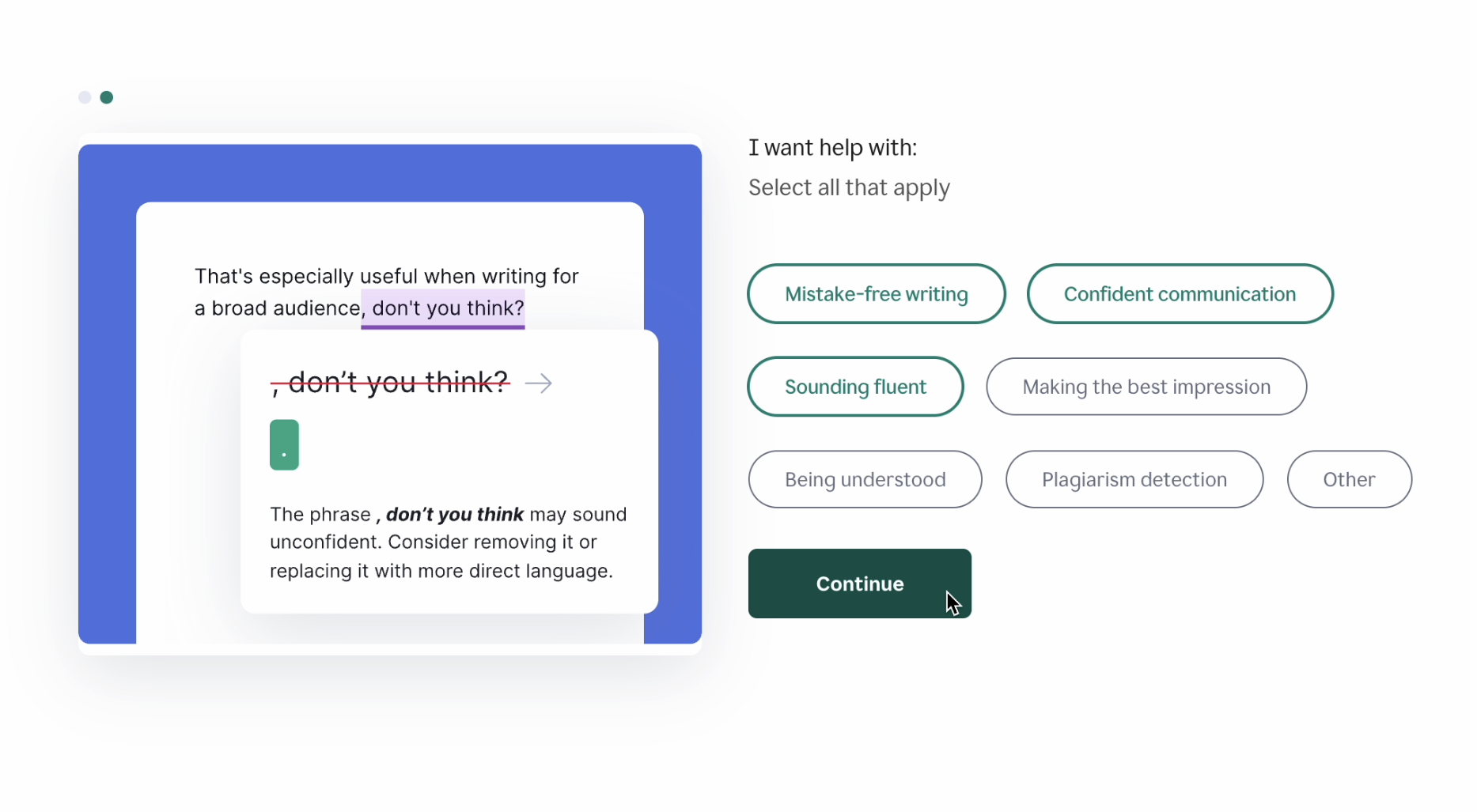
9. Once you have completed or skipped the personalization prompts, you will have successfully joined the Fresno State Grammarly EDU license.
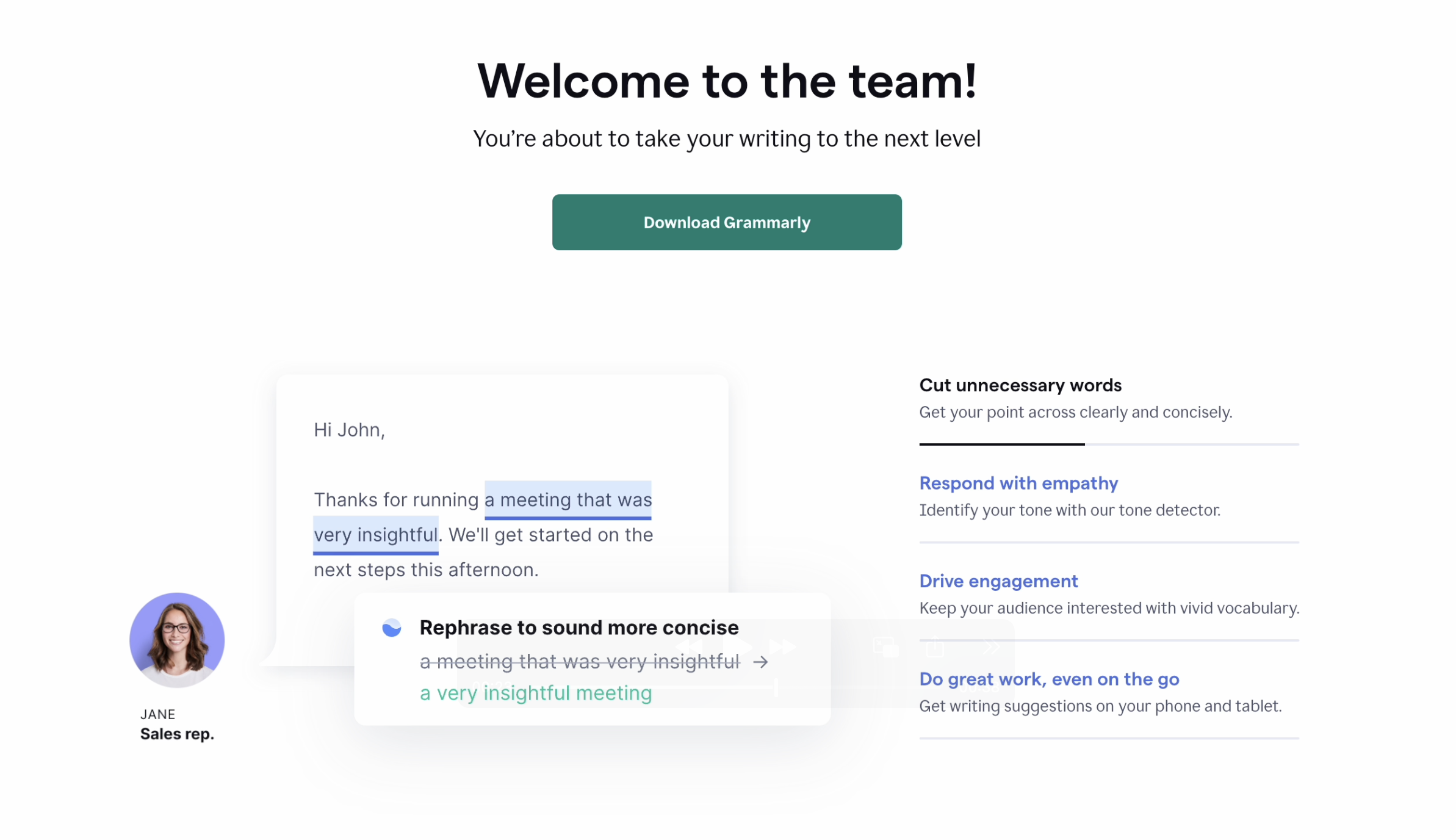
10. You’ll know you have joined the Edu license when you see the EDU badge. You can now begin your Grammarly journey!
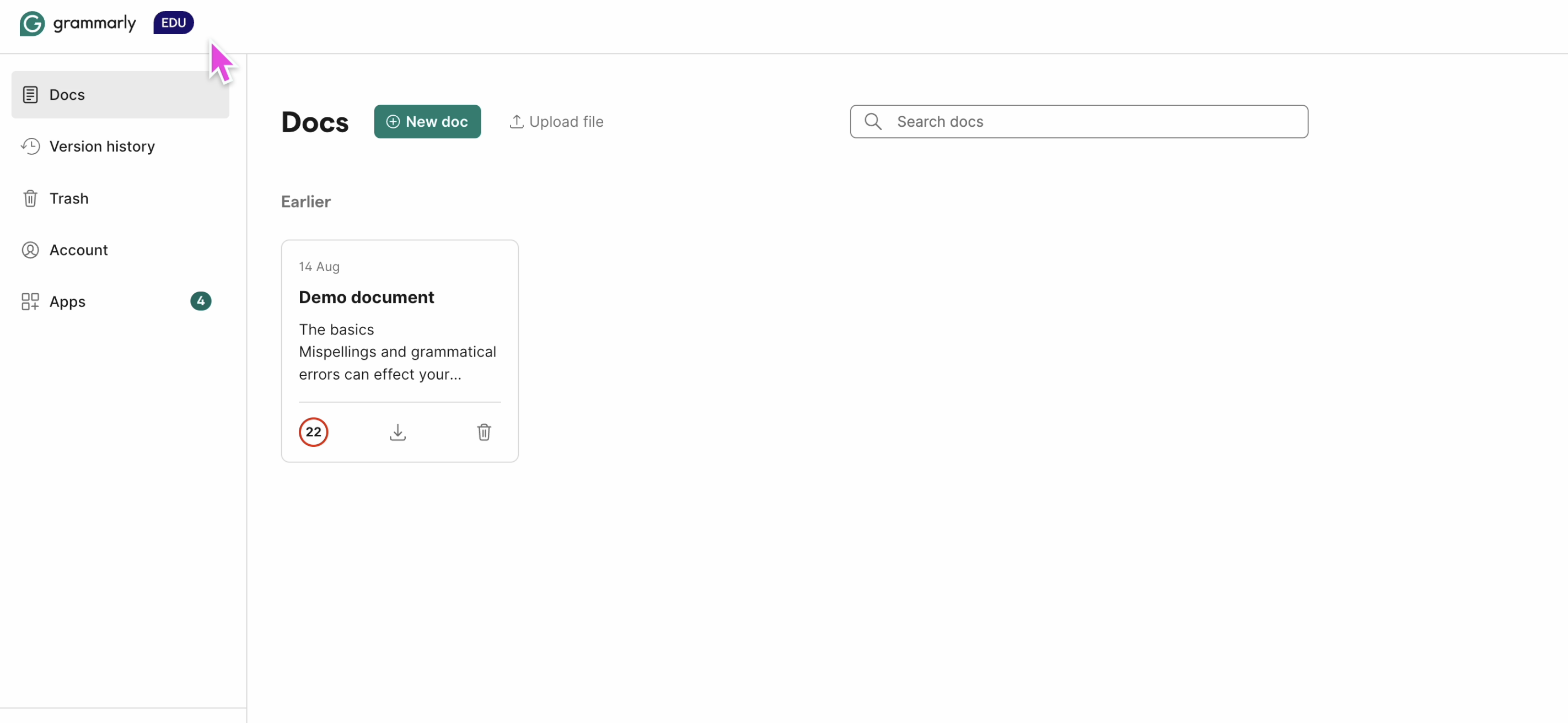
To keep your current account, you must change the email address to a personal, non-Fresno State email account. You will then be able to maintain your personal account and join the Grammarly EDU license.
1. First, go to the Fresno State AI Tools Self-Service Portal. Click the Login button to begin.
2. You will be directed to the Campus Login Services page. Enter your Fresno State username and password, then click Login.
3. You will see a list of AI tools available to you. Find Grammarly Edu and click the “Activate” button.
4. Review the account options. Please note that if you already have an existing Grammarly account, you will need to either merge it with the Fresno State EDU license or change the email to keep it separate. You will be able to proceed with either option after you have activated your account. Once reviewed, check the “I have read and understand the information provided above” box and click Continue.
5. You will see a message confirming your account was successfully activated. Click “Go back to AI Applications and Services” to return to the main dashboard.
6. Once back on the main page, you’ll now see that the “Activate” button is disabled, which means activation was successful. Review the directions on where to go to access Grammarly then click Logout to finish. You will receive an email once your account is available. Follow the instructions in the email to complete your Grammarly Edu account setup. Please note: You must use the link provided in the email to access Grammarly for the first time after activating your account. This is required to provision your account properly.
7. Click on the link in the email. You will see this screen after you have logged in. Click the “Change the email address for your personal account” button.

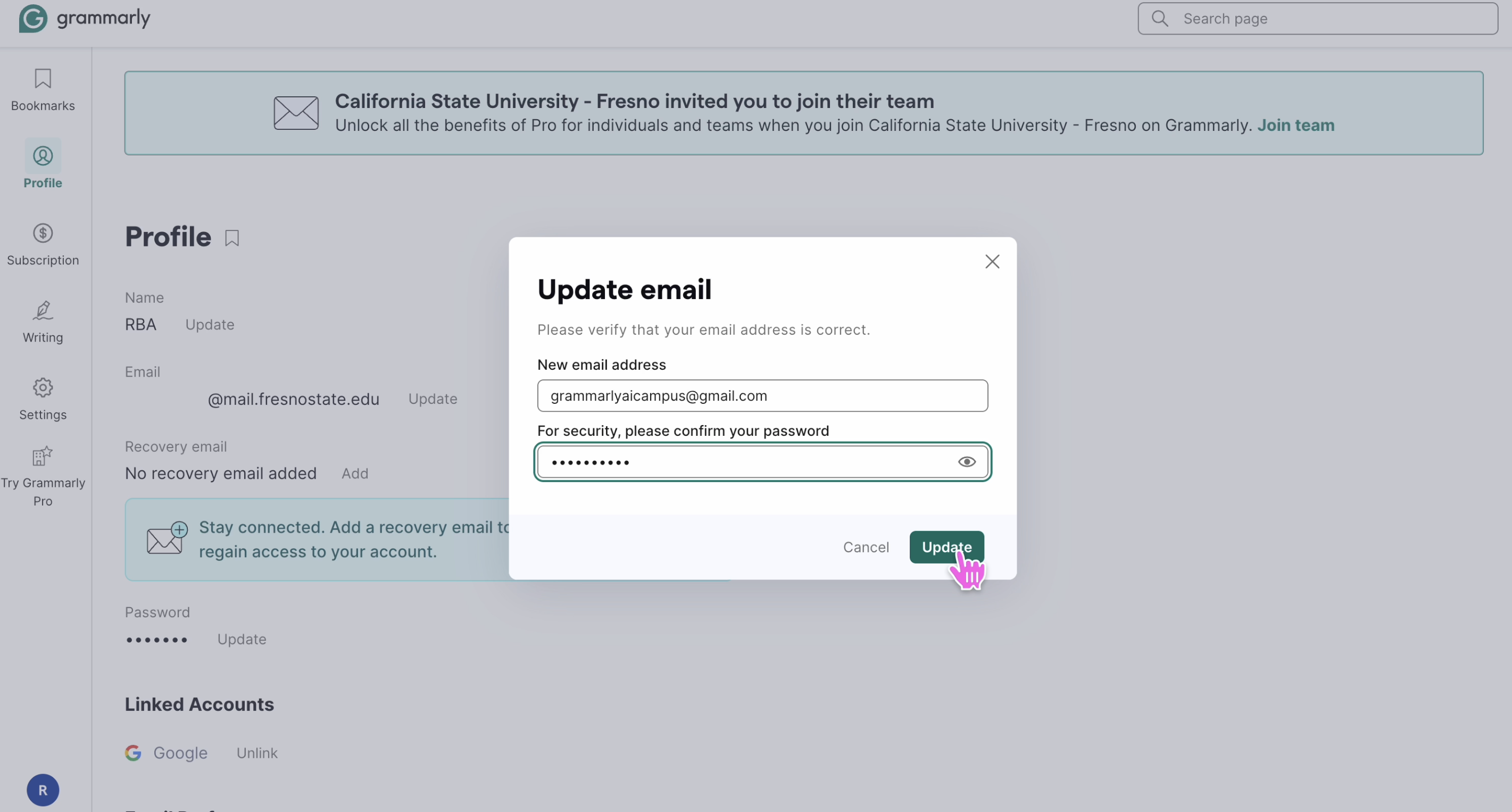
8. You will be directed to your Grammarly homepage. Click the “Update” button next to your @mail.fresnostate.edu email to update your email address for this account. If you are unable to click the "Update" button next to your email, that may mean you need to reset your password. Try updating your password before continuing to the next step.
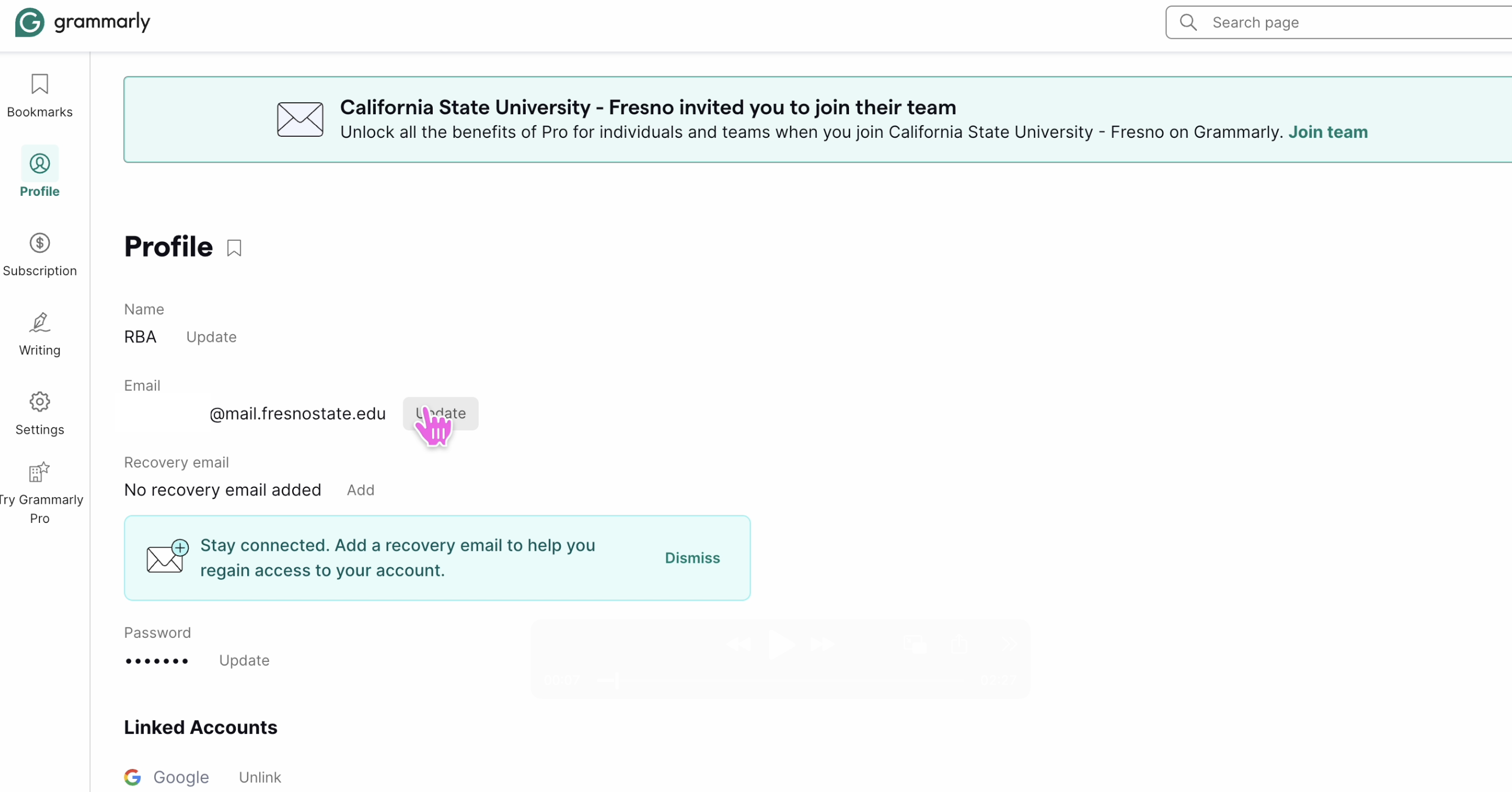
9. Enter your new personal email address and the password for your account, and click “Update”.
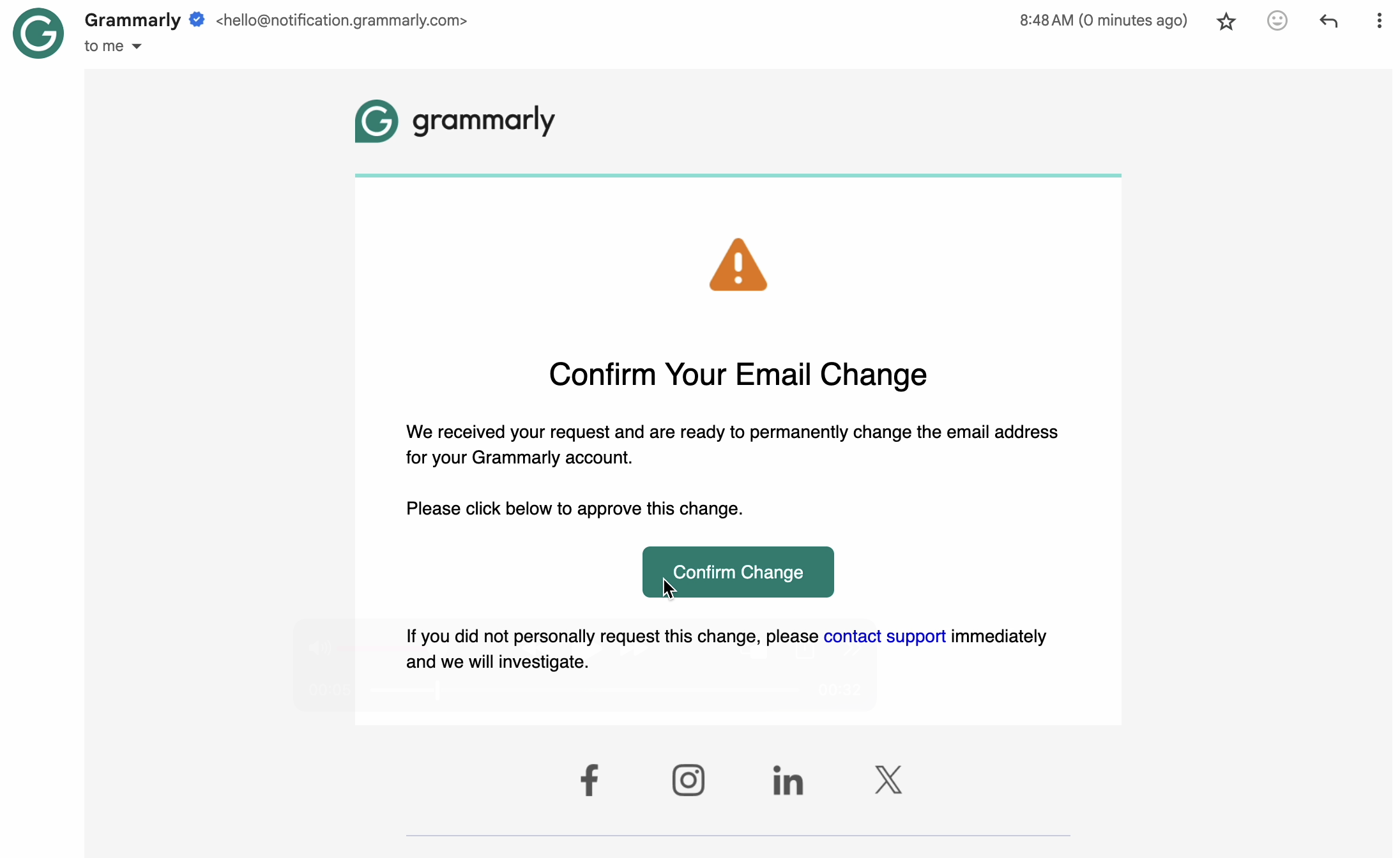
10. A confirmation email will be sent to the new email address you have selected. Click “Confirm Change”.
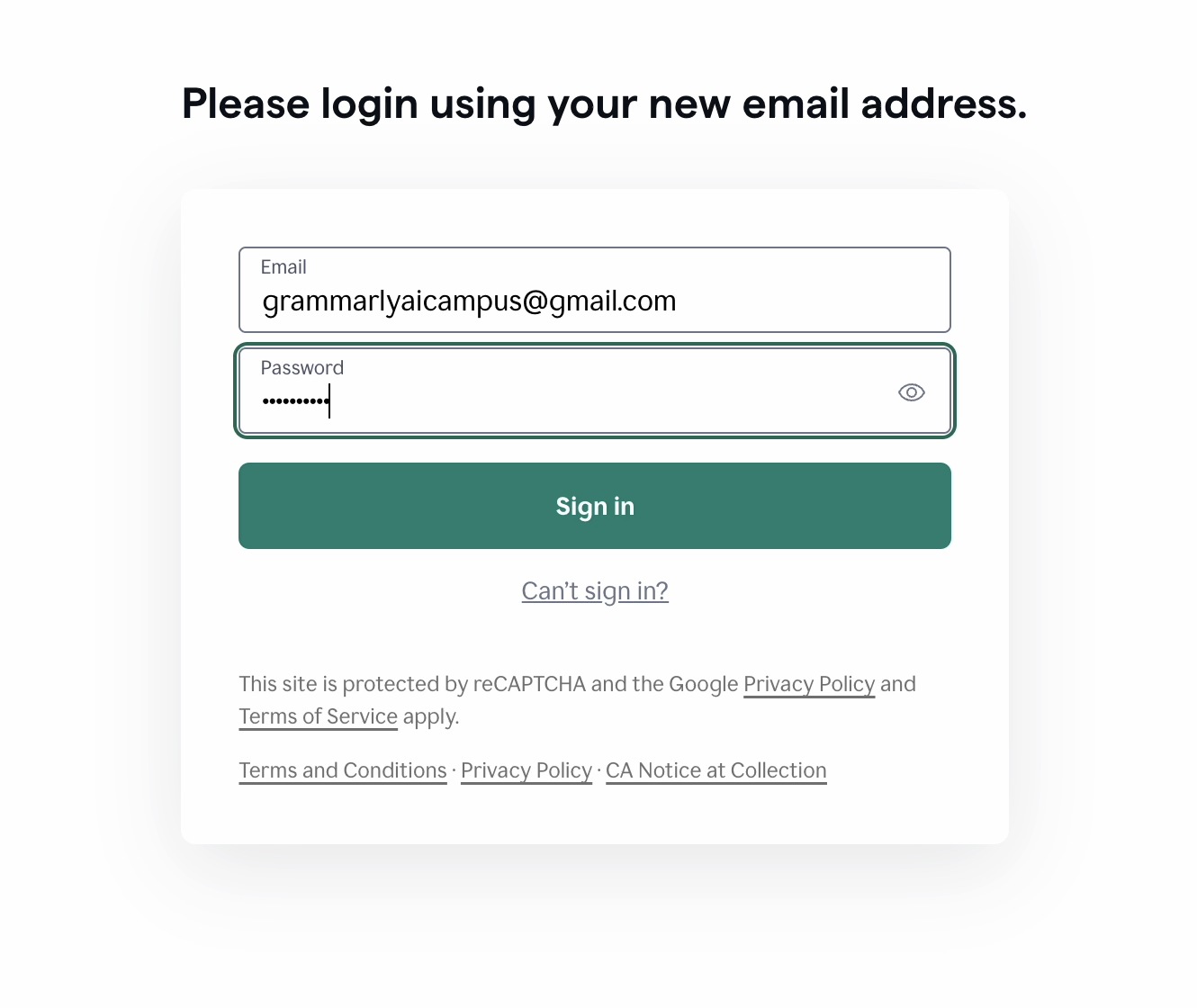
11. You will be asked to log in using your new email address. Click the “Sign in” button.
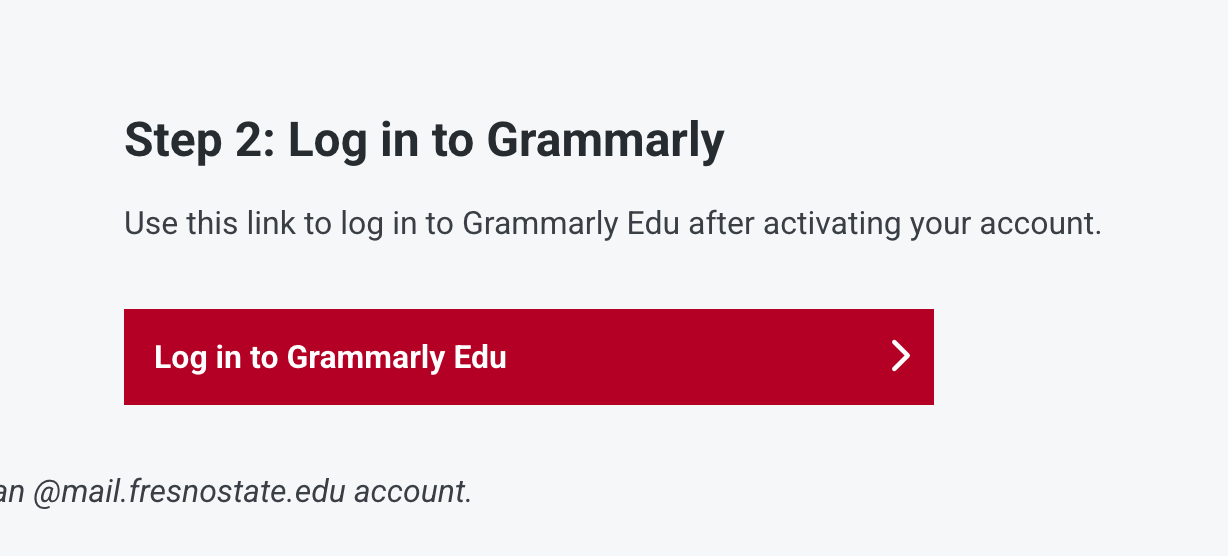
12. Once you have confirmed the change and signed in with your new email address, go back to fresnostate.ai/grammarly and sign in with your @mail.fresnostate.edu.
13. You’ll know you have joined the Edu license when you see the EDU badge. You can now begin your Grammarly journey!
What is Grammarly?
Grammarly is an AI-powered writing assistant that helps users communicate clearly and effectively by offering real-time suggestions for grammar, spelling, tone, and style. Watch the video below to learn more about Grammarly.
Take a Tour of Grammarly EDU
In this section, you'll find a video walkthrough designed to guide you through the Grammarly interface and show you where to find and use key features.
Welcome to Grammarly! This guide will walk you through the platform step by step so you can get the most out of its features.
The Grammarly Browser Extension provides real-time writing suggestions for websites across Chrome, Safari, Edge, and Firefox. It offers grammar, spelling, and tone suggestions, helping you communicate clearly and effectively. The extension menu provides quick access to essential settings and keyboard shortcuts. Under Quick Settings, you can enable or disable real-time writing suggestions on specific sites. The Shortcuts section lists default keyboard commands for opening, closing, or activating Grammarly features. The menu includes settings for Generative AI, language preferences, and accessibility. You can enable features like showing Grammarly suggestions on text selection, enabling quick reply options, or displaying definitions and synonyms on double-click. You can also use automatic spelling correction, record the origin of your text using Grammarly Authorship, choose your preferred English dialect, and activate screen reader support to enhance accessibility.
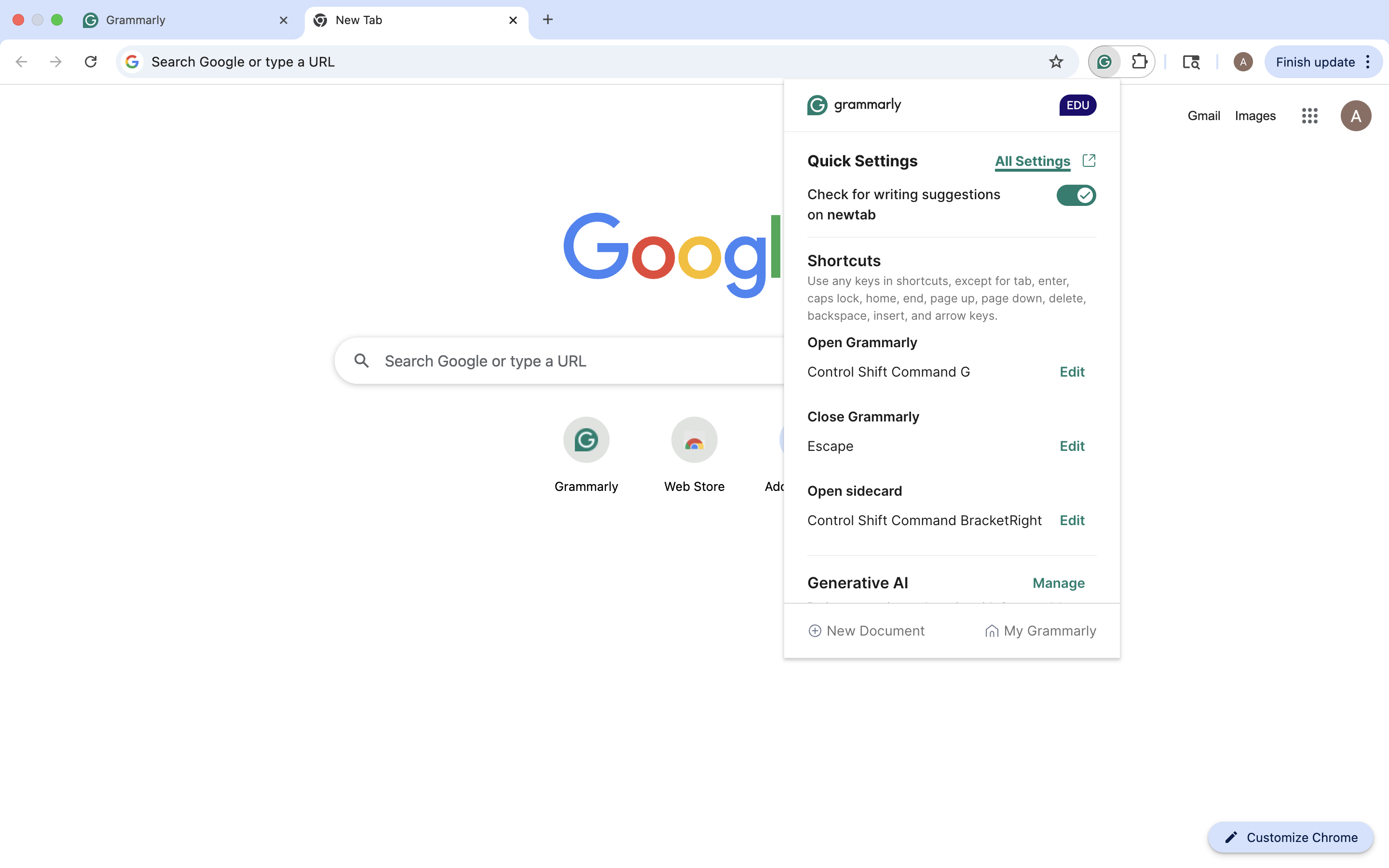
My Grammarly: The My Grammarly homepage serves as a dashboard, where you can create new documents, upload existing documents, and view Grammarly’s suggestions. The left sidebar offers quick navigation to additional features:
- Docs: View, organize, and access all your saved documents.
- Version History: Restore previous versions of your writing.
- Trash: Recover or permanently delete discarded files.
- Account: Manage your profile, email, and subscription details.
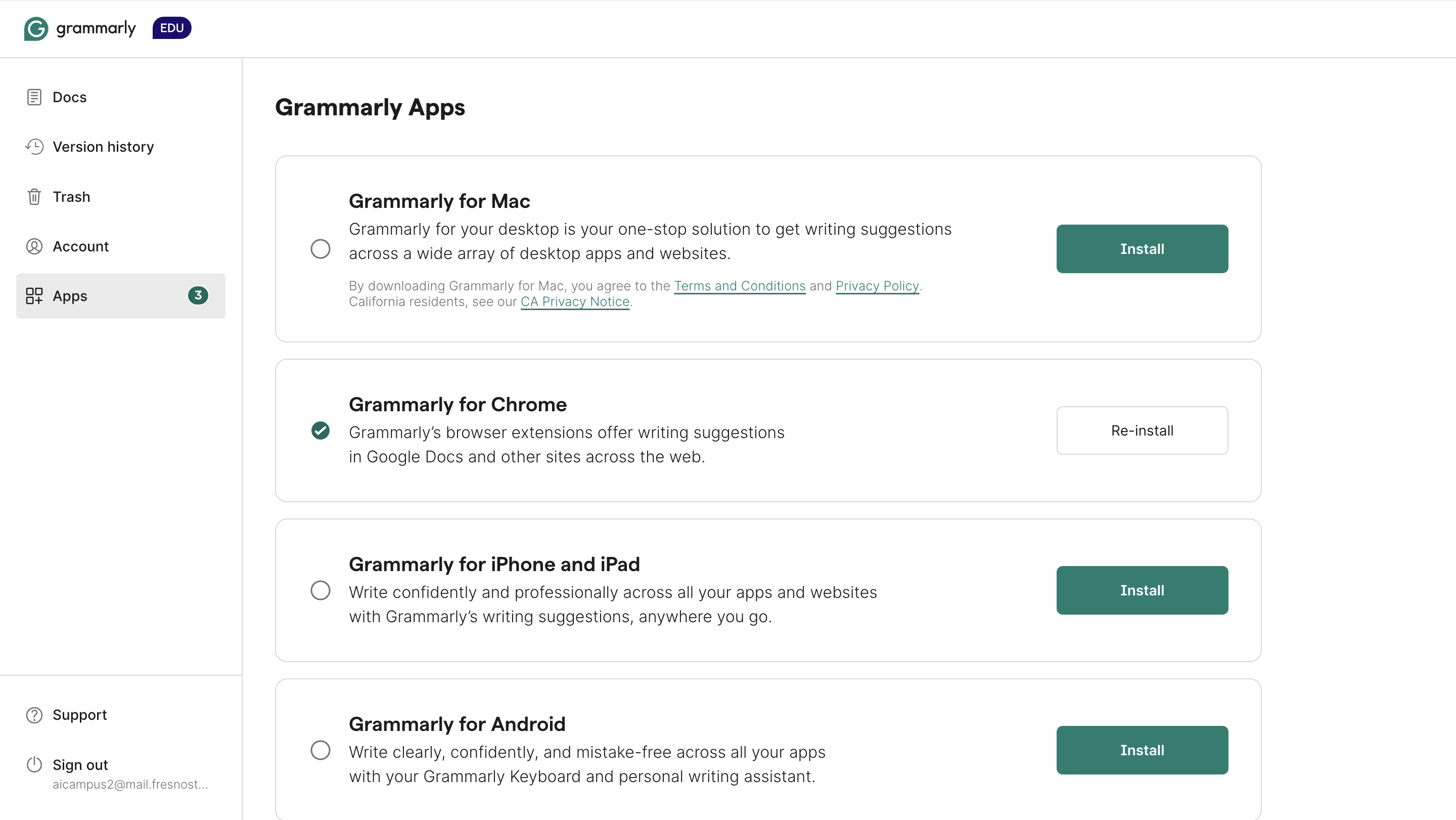
- Apps: Download Grammarly’s desktop and mobile apps or browser extensions.
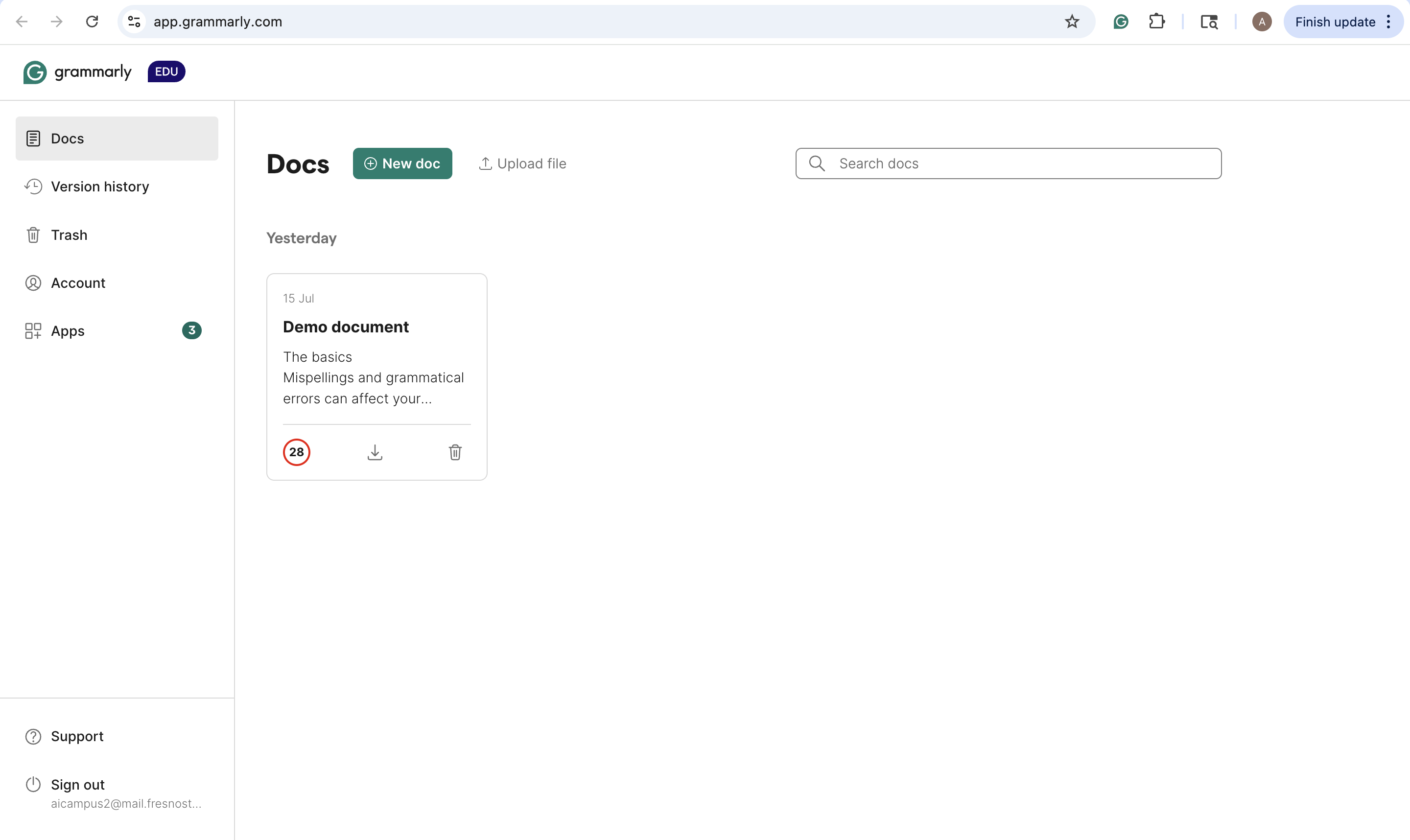
Docs: The Docs section is your central workspace within Grammarly, where you can create, upload, organize, and manage documents. Key features include:
- New doc: Write directly within the Grammarly editor.
- Upload file: Import documents from your device.
- Document Cards: Each document is displayed with a preview, date, score badge, and quick actions, such as downloading or deleting the document.
- Search bar: Use the search box to find documents by title or keyword quickly.
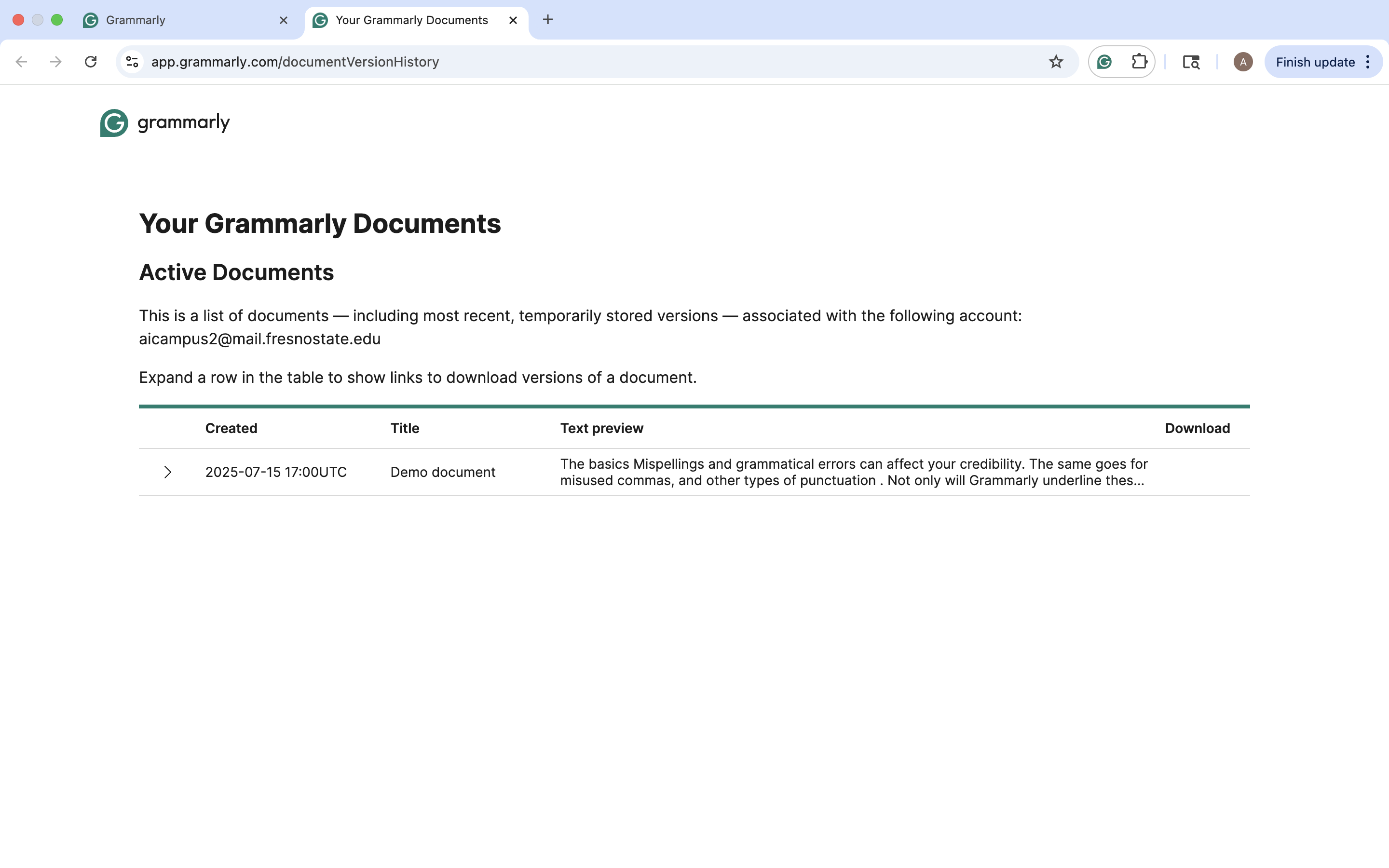
Version History: Version History allows you to view your recent work. Here, you can access summaries of active documents and recently deleted files.
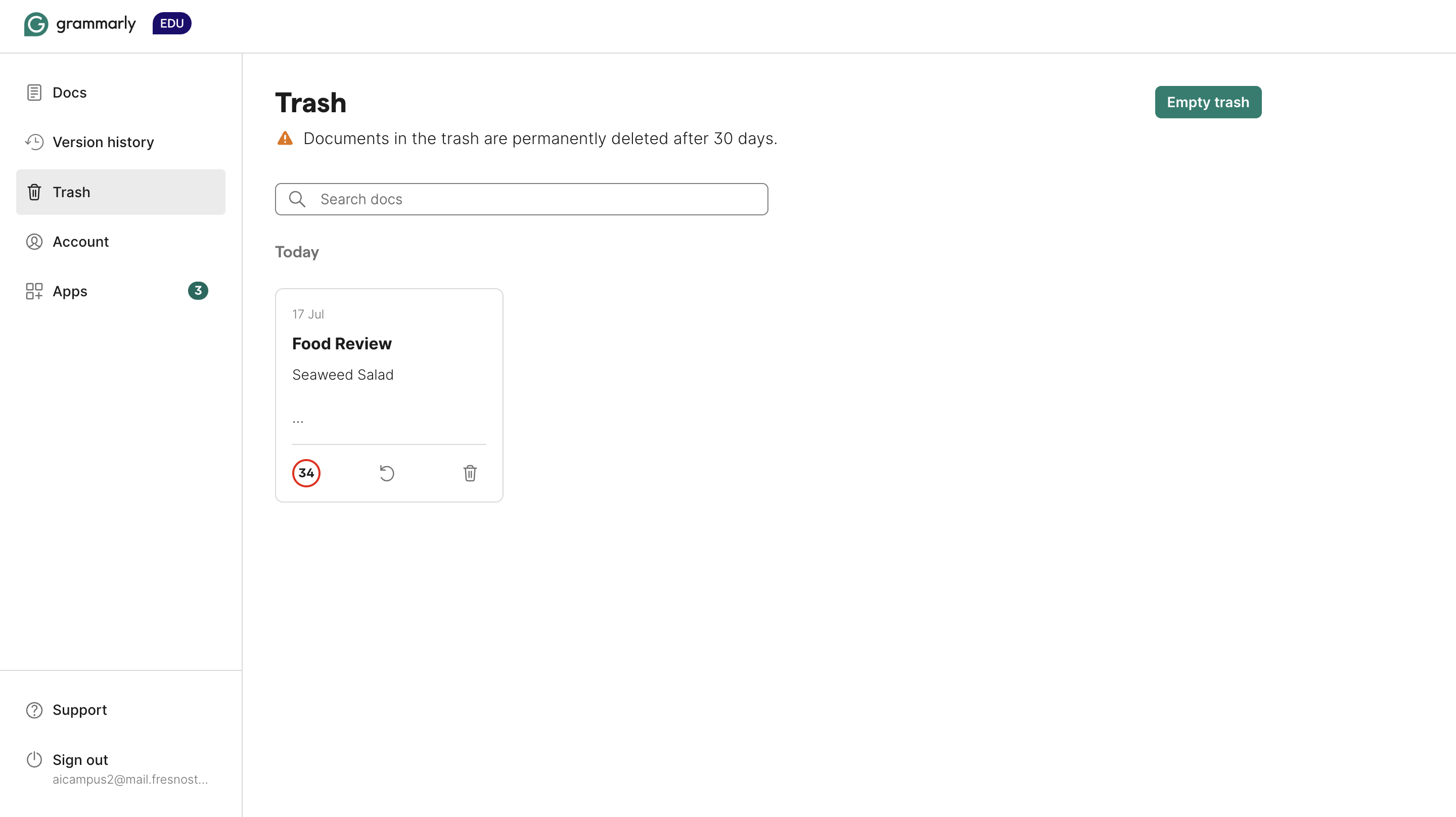
Trash: Trash manages deleted content. You’ll have the option to restore or permanently delete files as needed.
Bookmarks: Bookmarks allows you to save specific Grammarly features. You can create shortcuts to frequently used tools or settings, improving your Grammarly navigation.
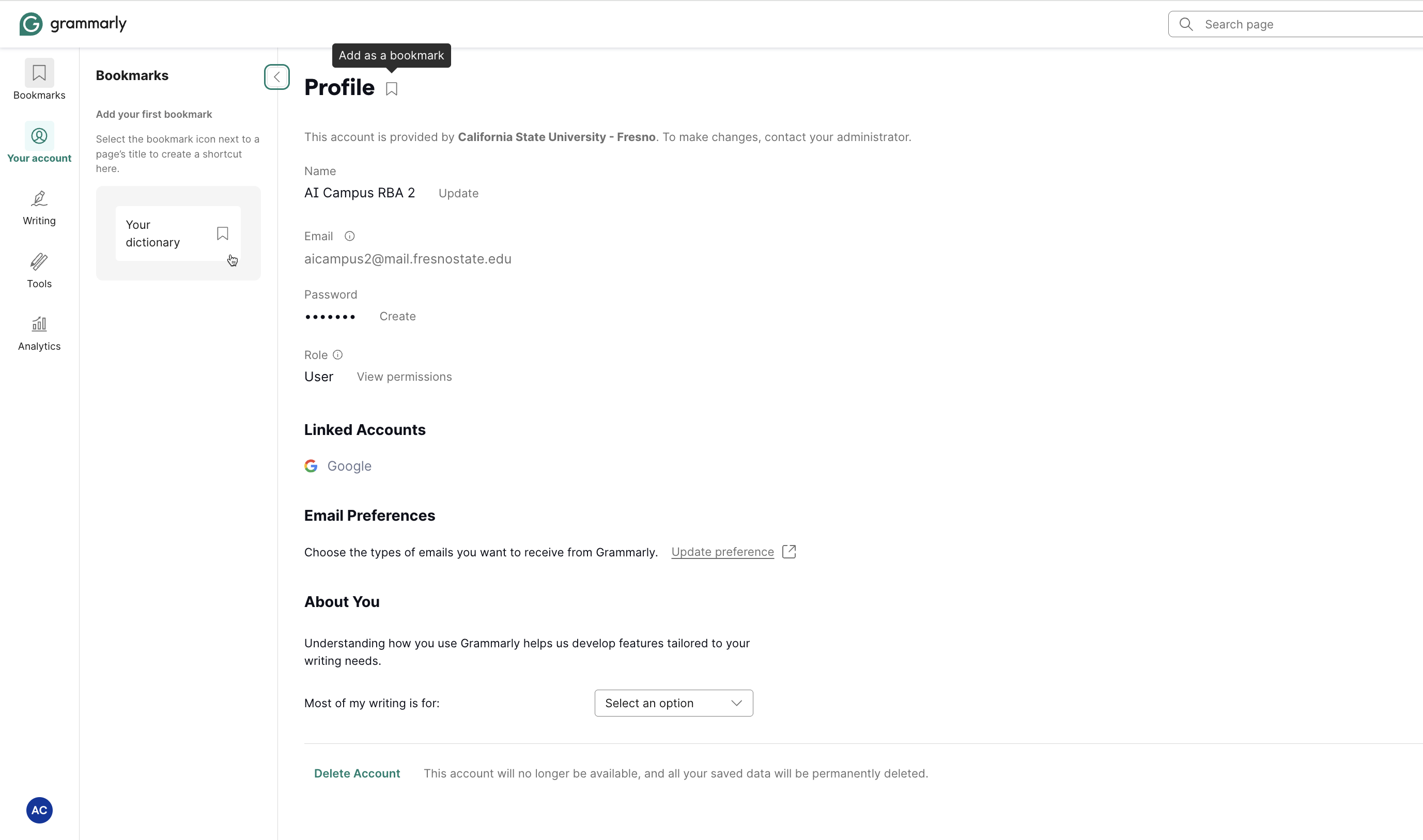
Profile: Profile allows you to manage your account details. From there, you can update your personal information, such as your name, email address, preferences, and any customizations you’ve made.
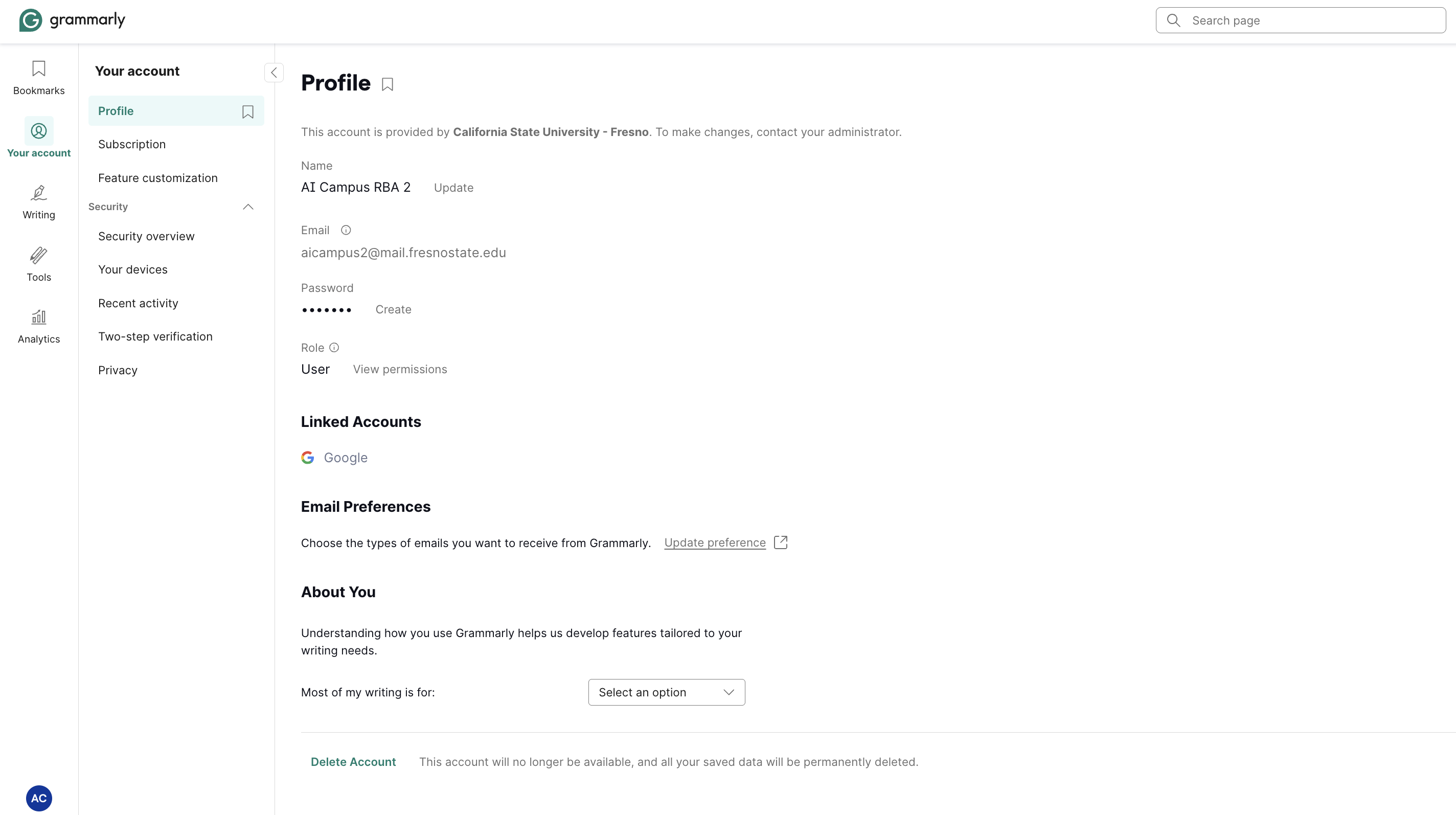
Subscription: Subscription shows the details of your Grammarly EDU plan, provided by your organization.
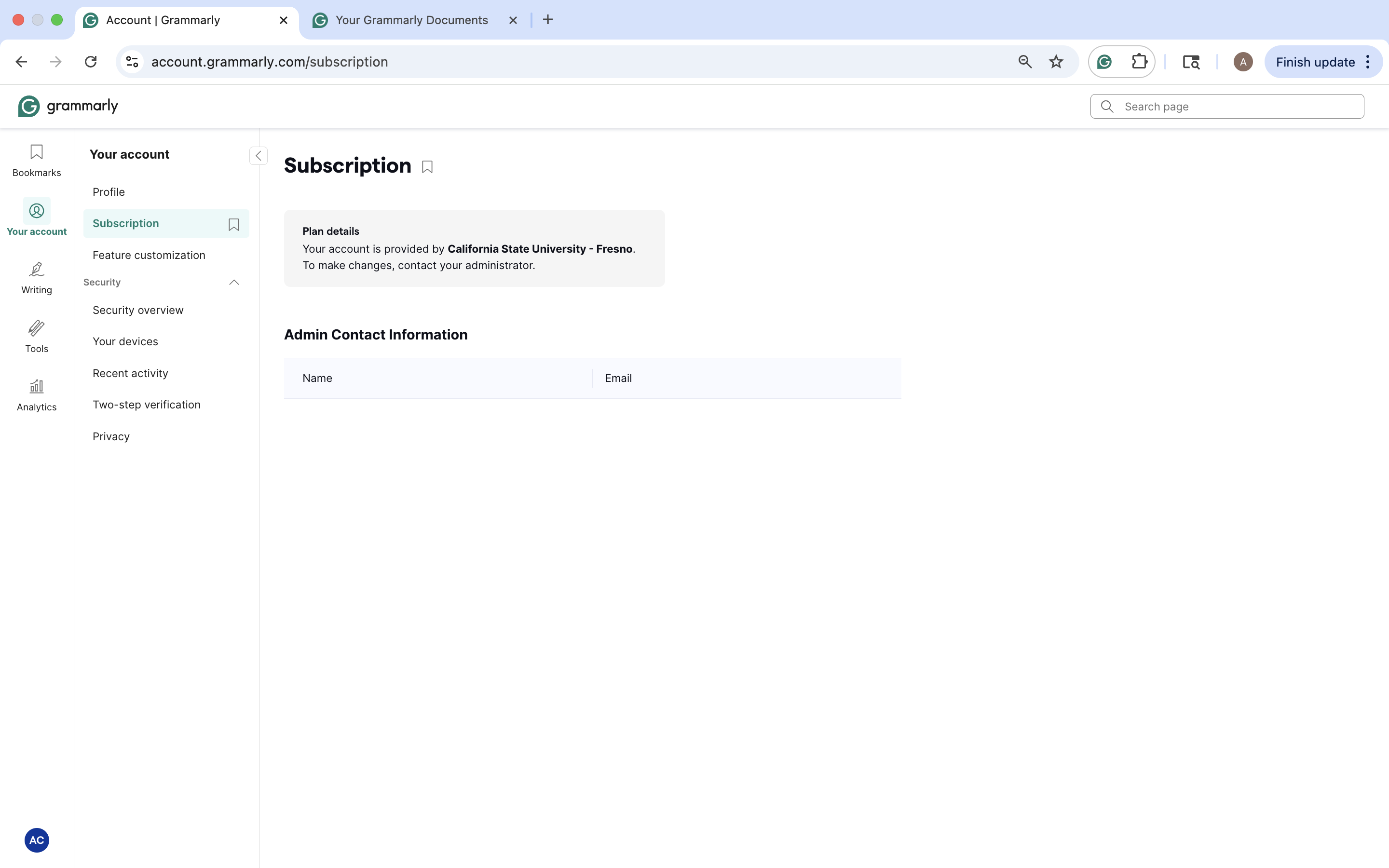
Feature Customization: Feature Customization provides customization settings on how Grammarly functions, including enabling Generative AI, setting up reusable text snippets with shortcuts, and turning on suggestion bundles to write more efficiently.
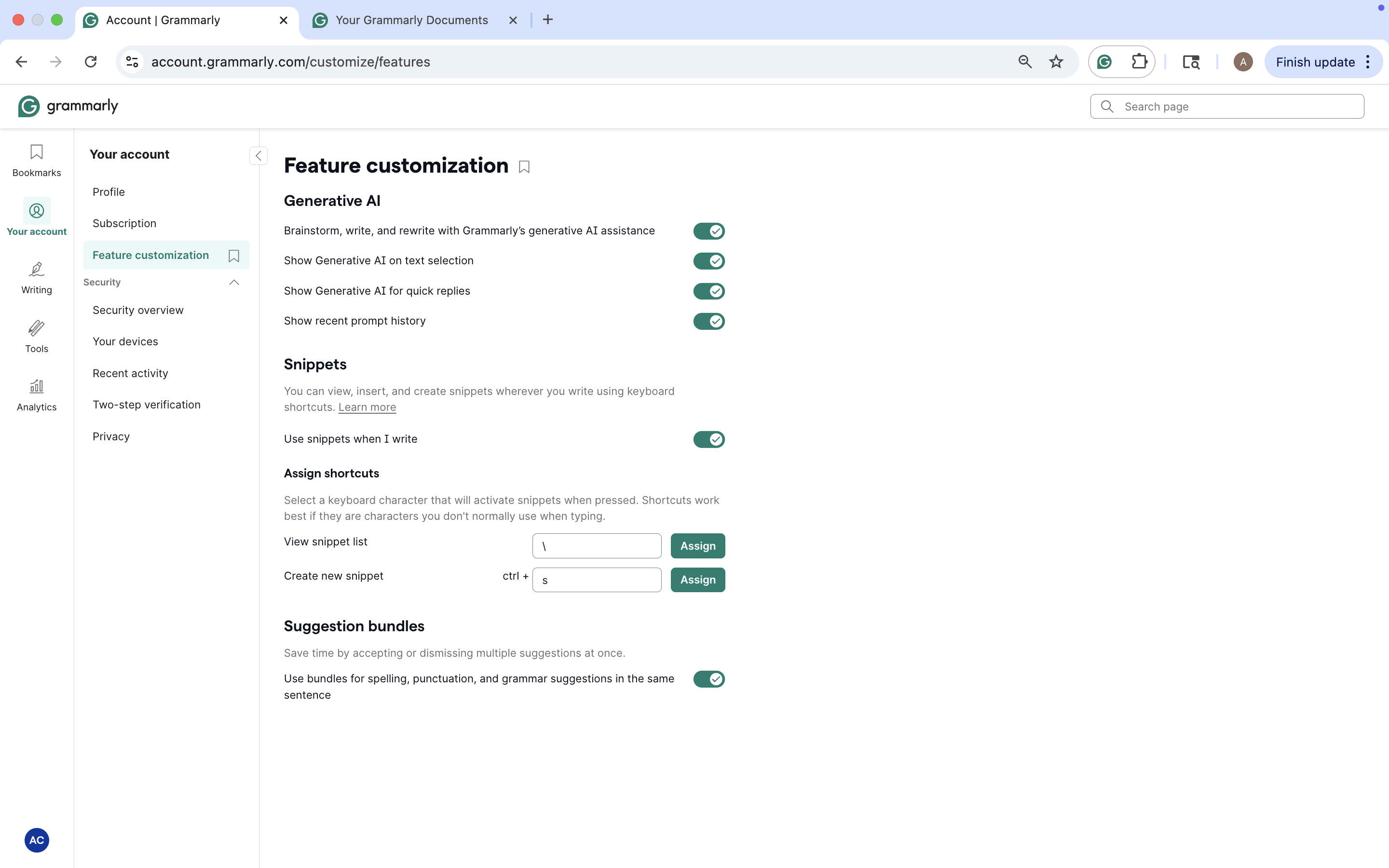
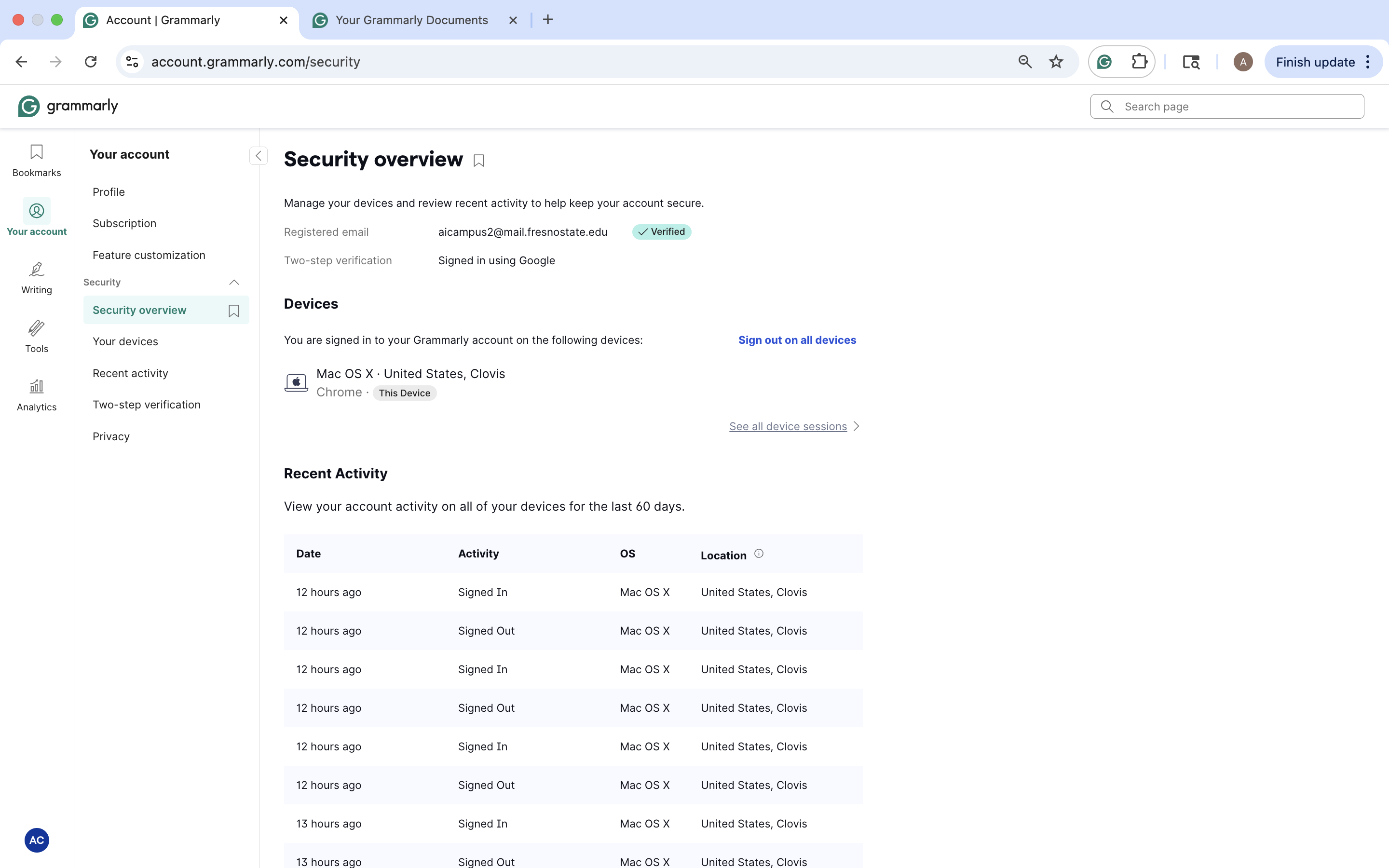
Security Overview: Security Overview allows you to monitor your account’s login activity and connected devices. It displays your registered email, sign-in method, and recent activity.
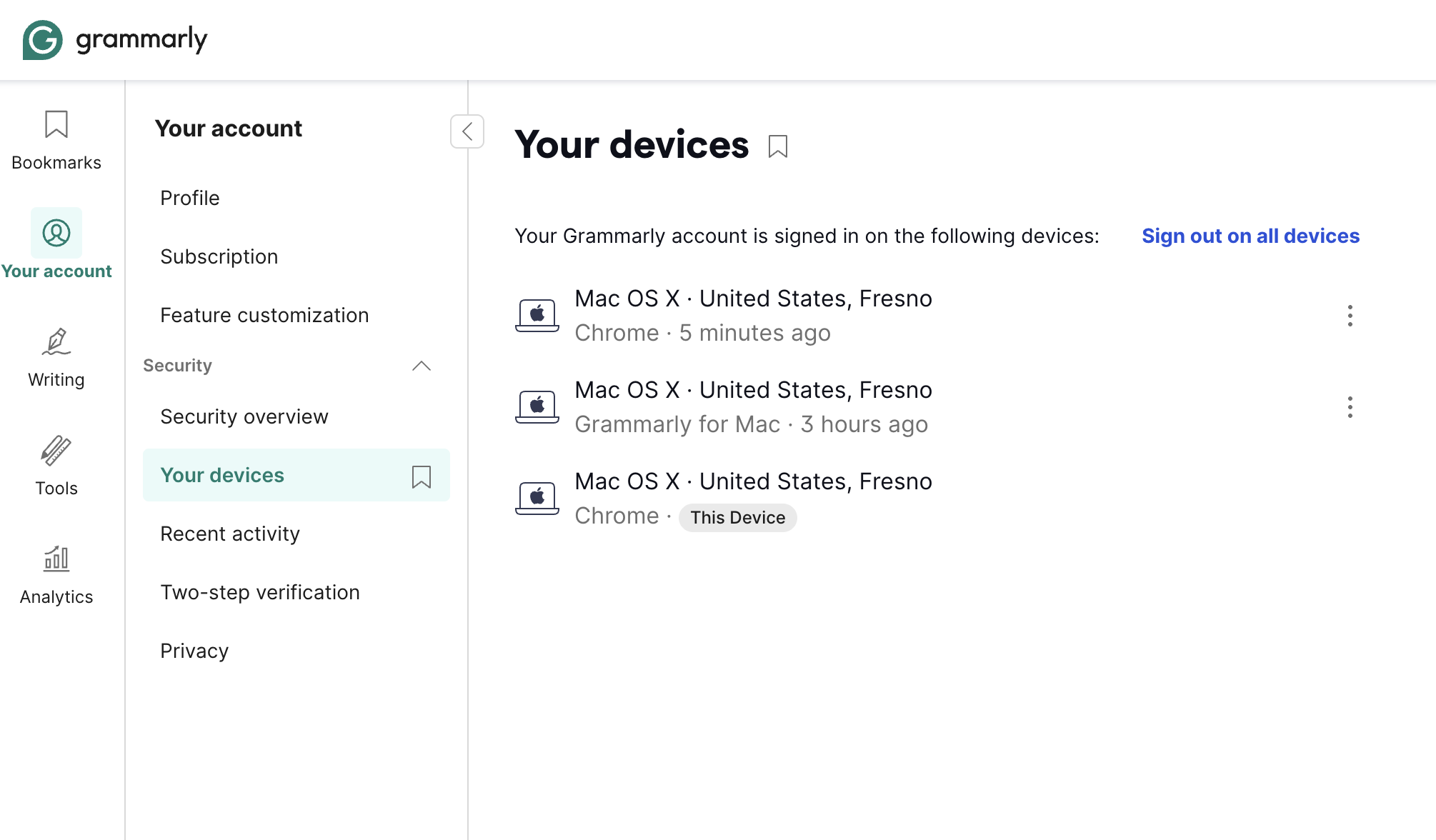
Your Devices: Your Devices displays all devices currently signed in to your Grammarly account. You can review active sessions and choose to sign out from all devices for added security.
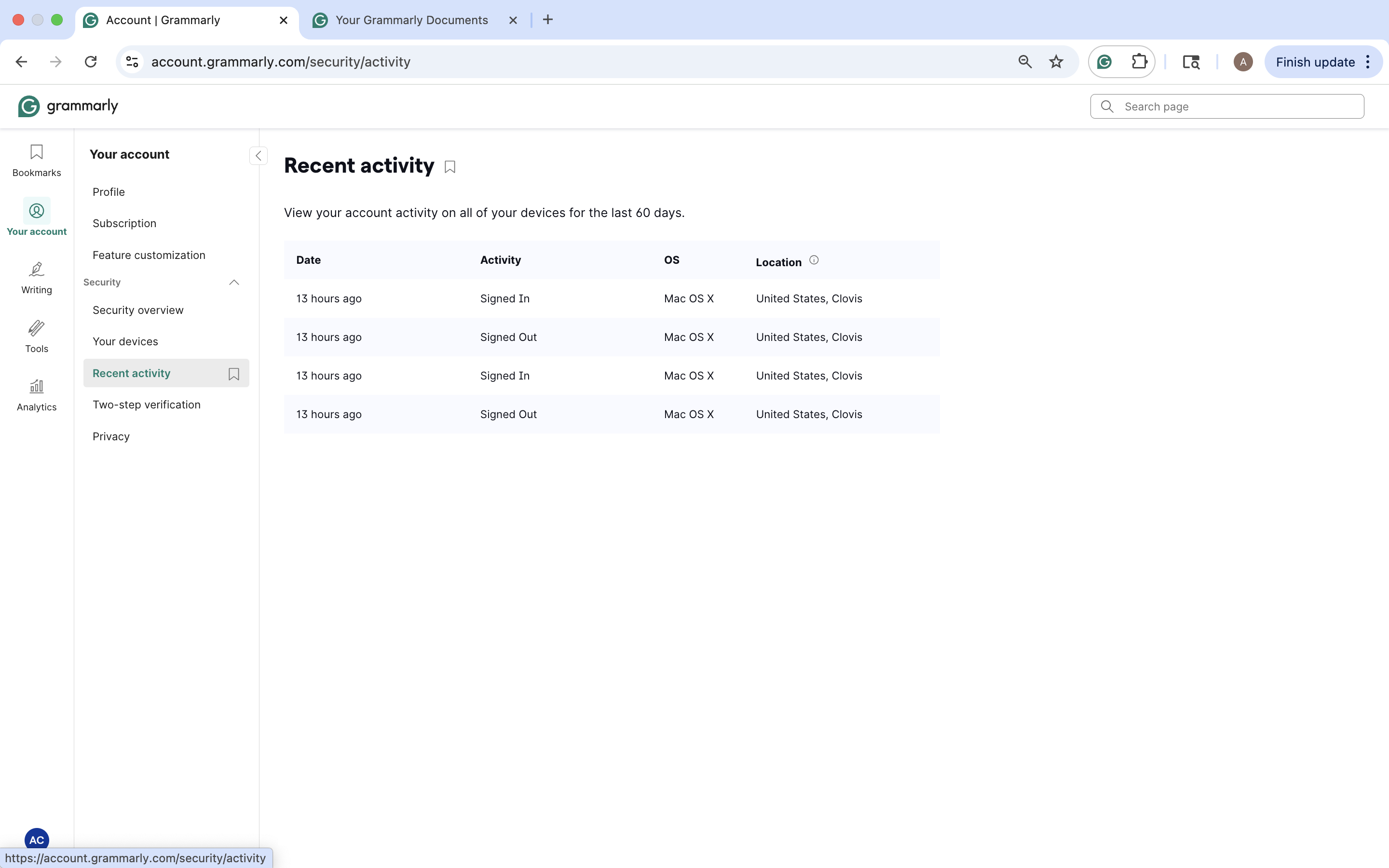
Recent Activity: Recent Activity provides a detailed log of your sign-in and sign-out activity across all devices over the past 60 days. It includes timestamps, device type, and location for added security.
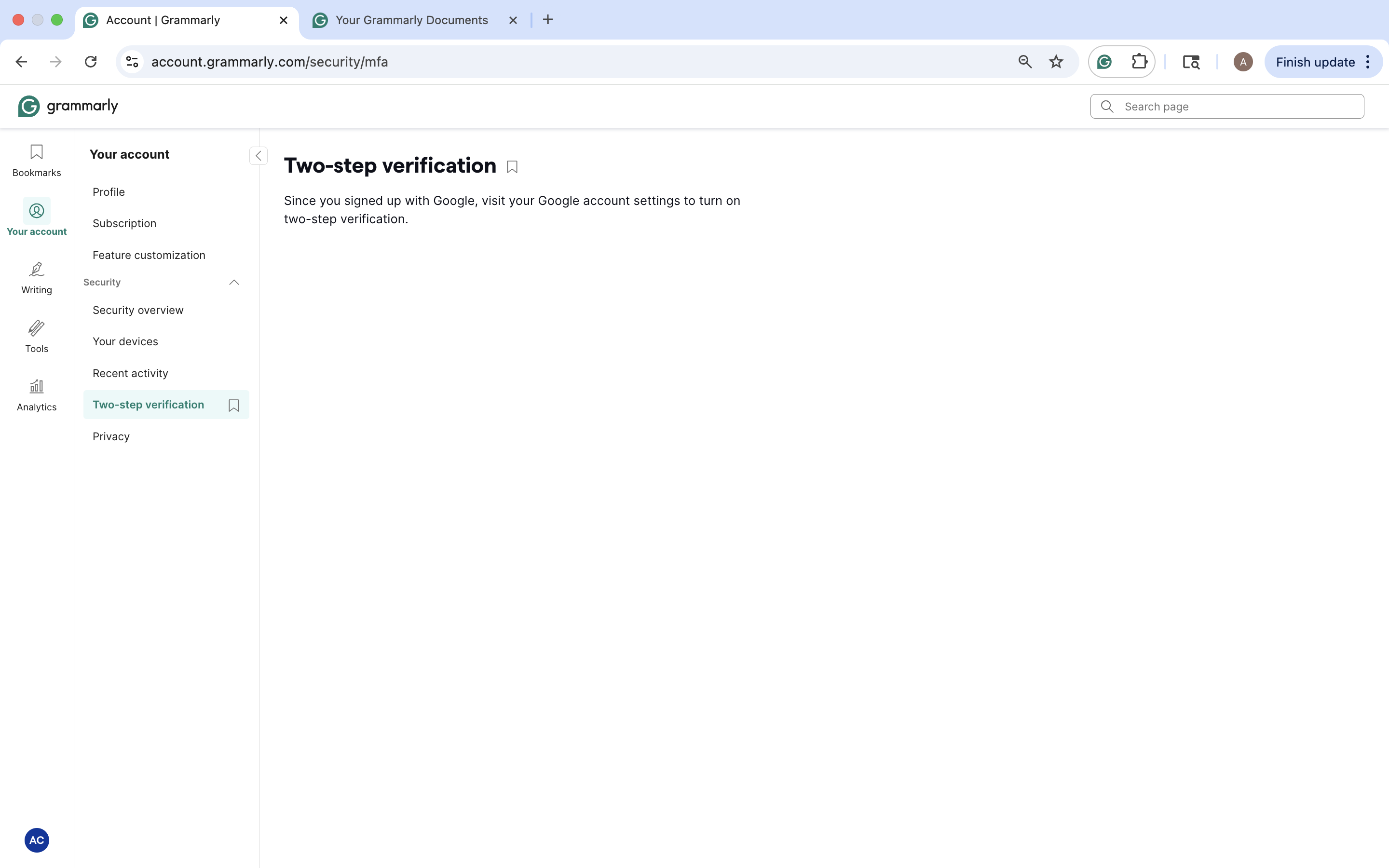
Two-Step Verification: Two-Step Verification informs you that you can enable two-step verification by using your Google account settings for added login security.
Privacy: Privacy outlines Grammarly’s approach to data privacy and gives you control over how your personal data is used. You can request a personal data report, manage advertising preferences, and view Grammarly’s policy on content used for product improvement and training under “Learn more”.
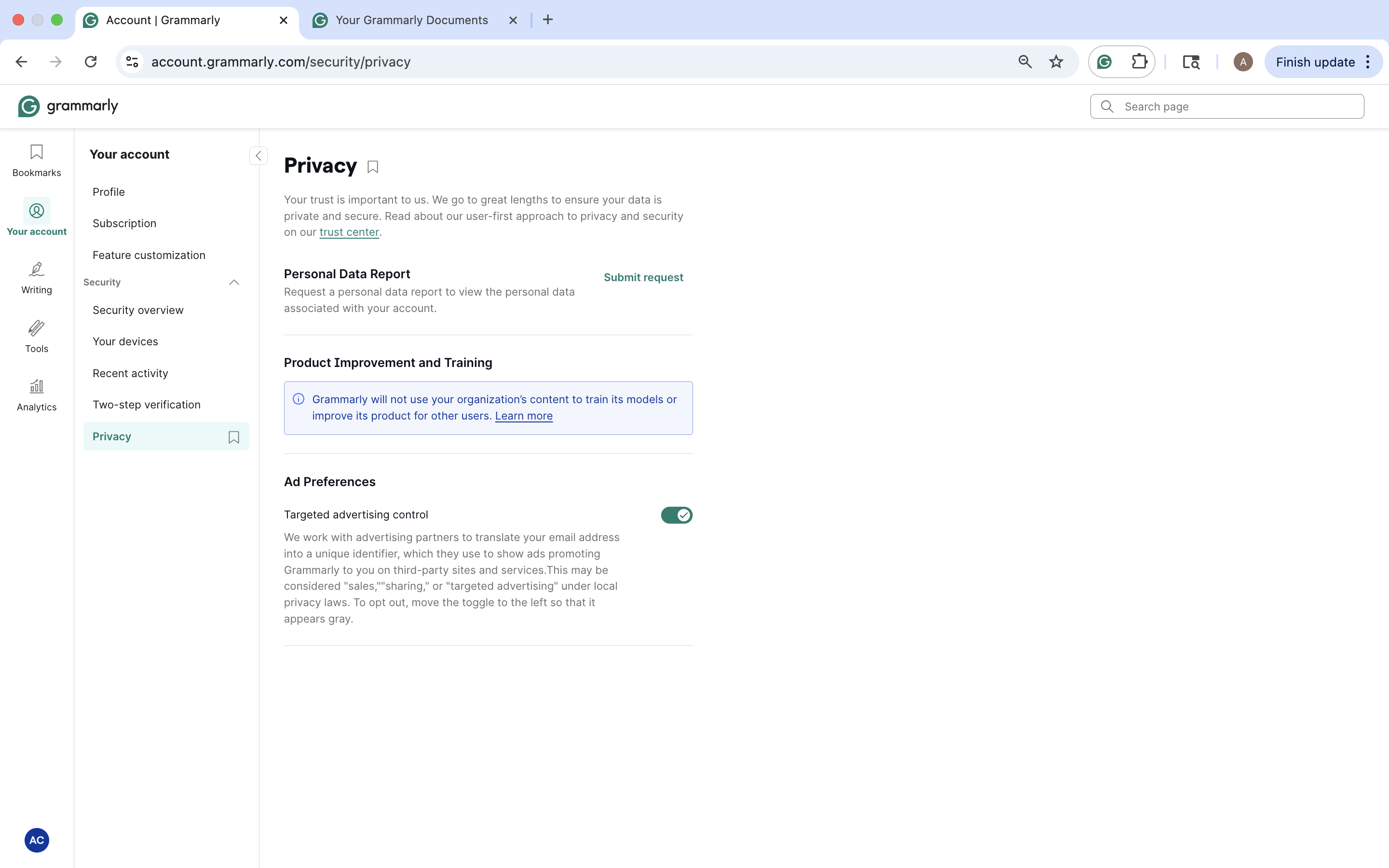
Your Dictionary: Your Dictionary allows you to add custom words to your personal dictionary so Grammarly won’t flag them as spelling mistakes in your future documents. It’s helpful for names, technical terms, or specialized language you use often.
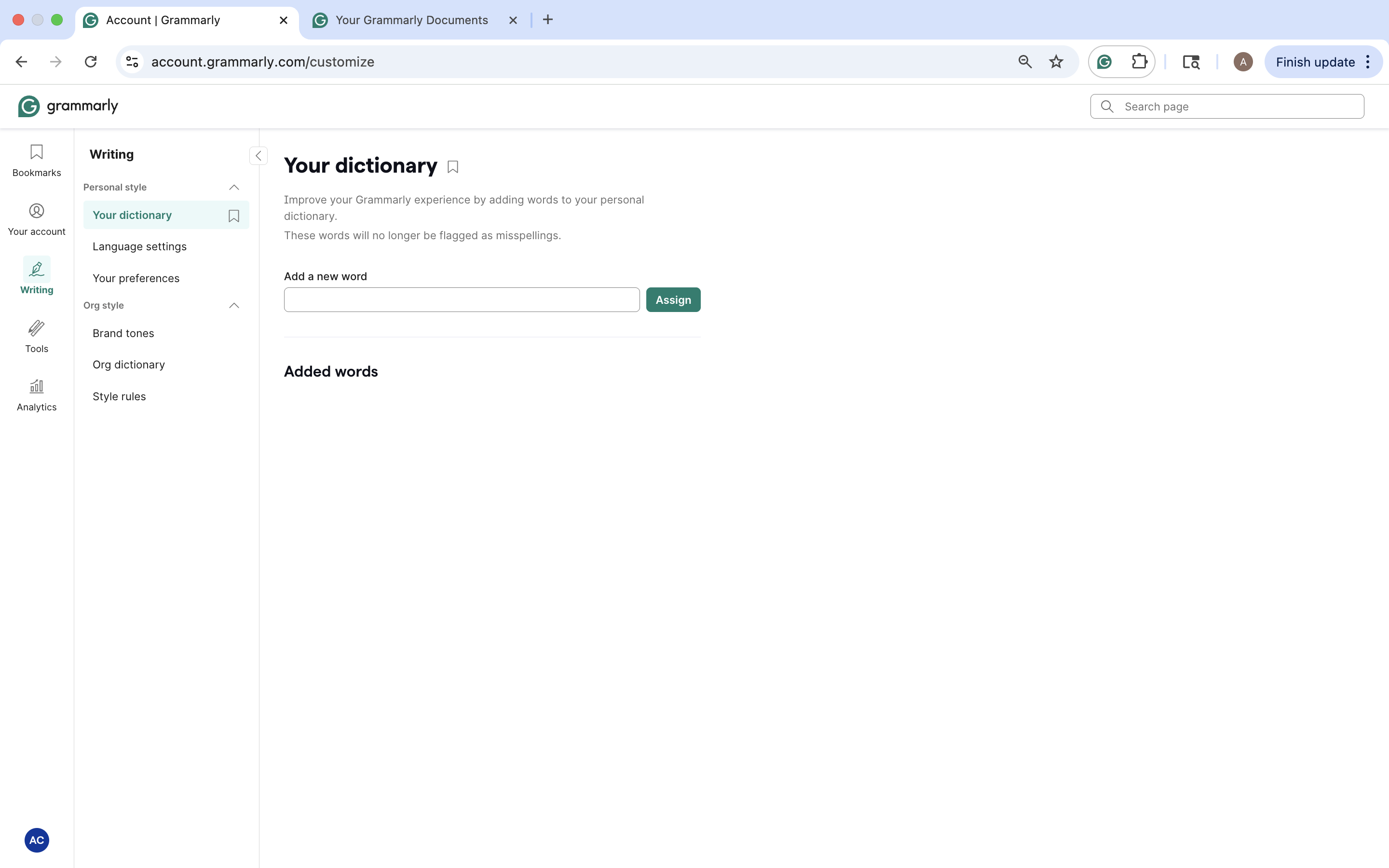
Language Settings: Language Settings allows you to select your primary language, choose a preferred dialect, and enable fluency assistance to receive suggestions that help your writing sound more natural.
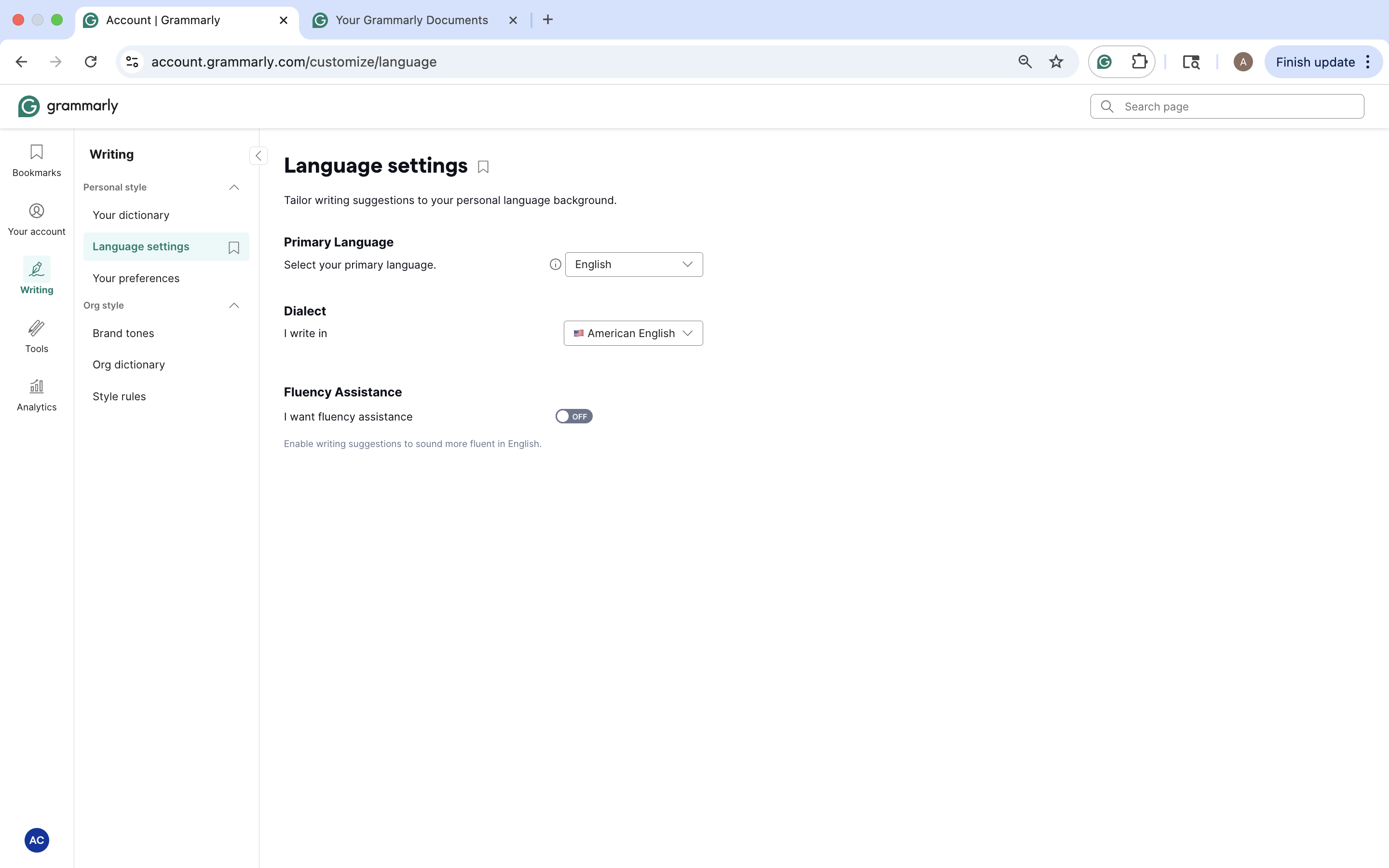
Your Preferences: Your Preferences allows you to tailor Grammarly’s writing suggestions to match your personal or professional style. You can enable or disable settings like tone adjustments, citation formatting, sentence clarity, etc.
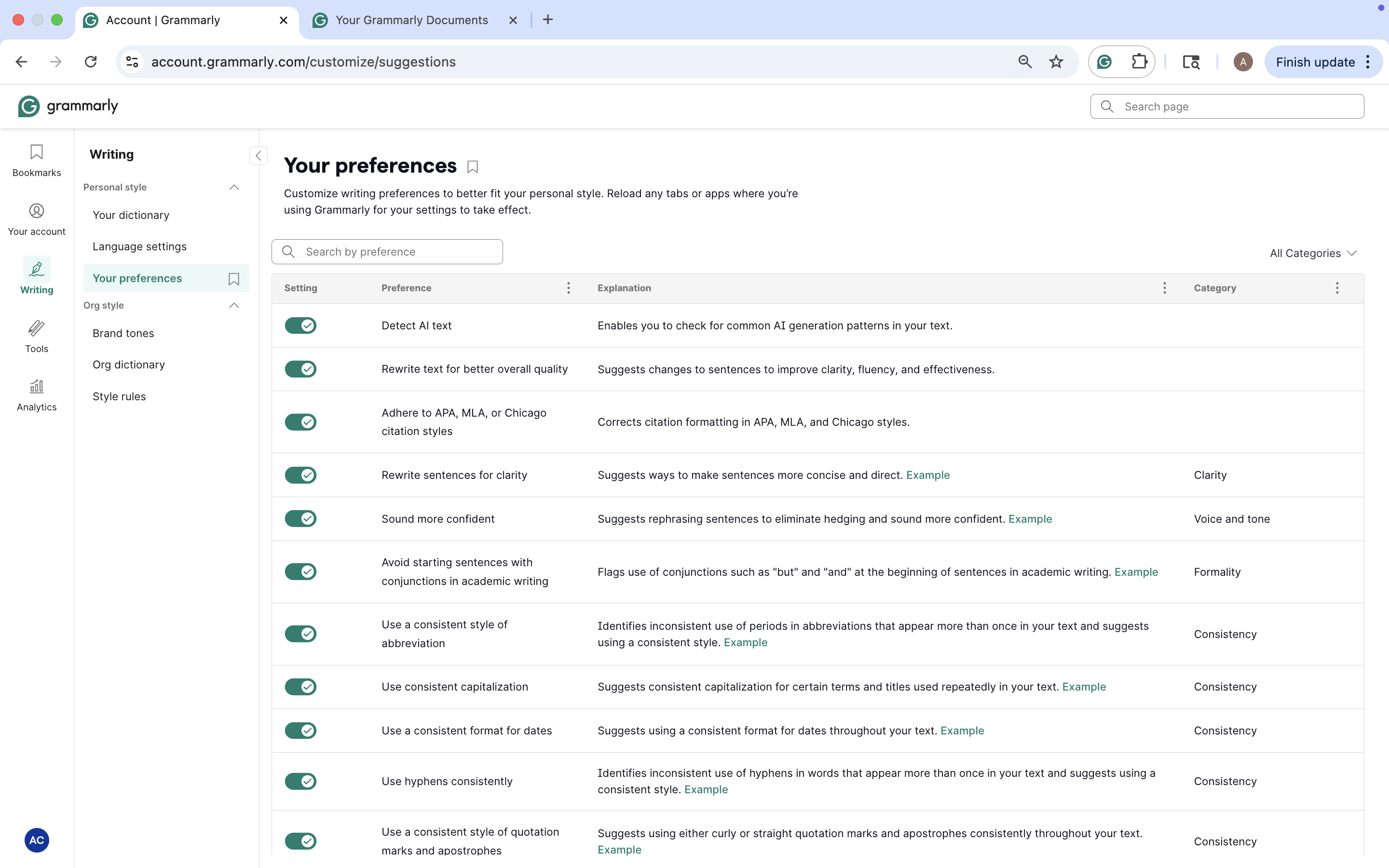
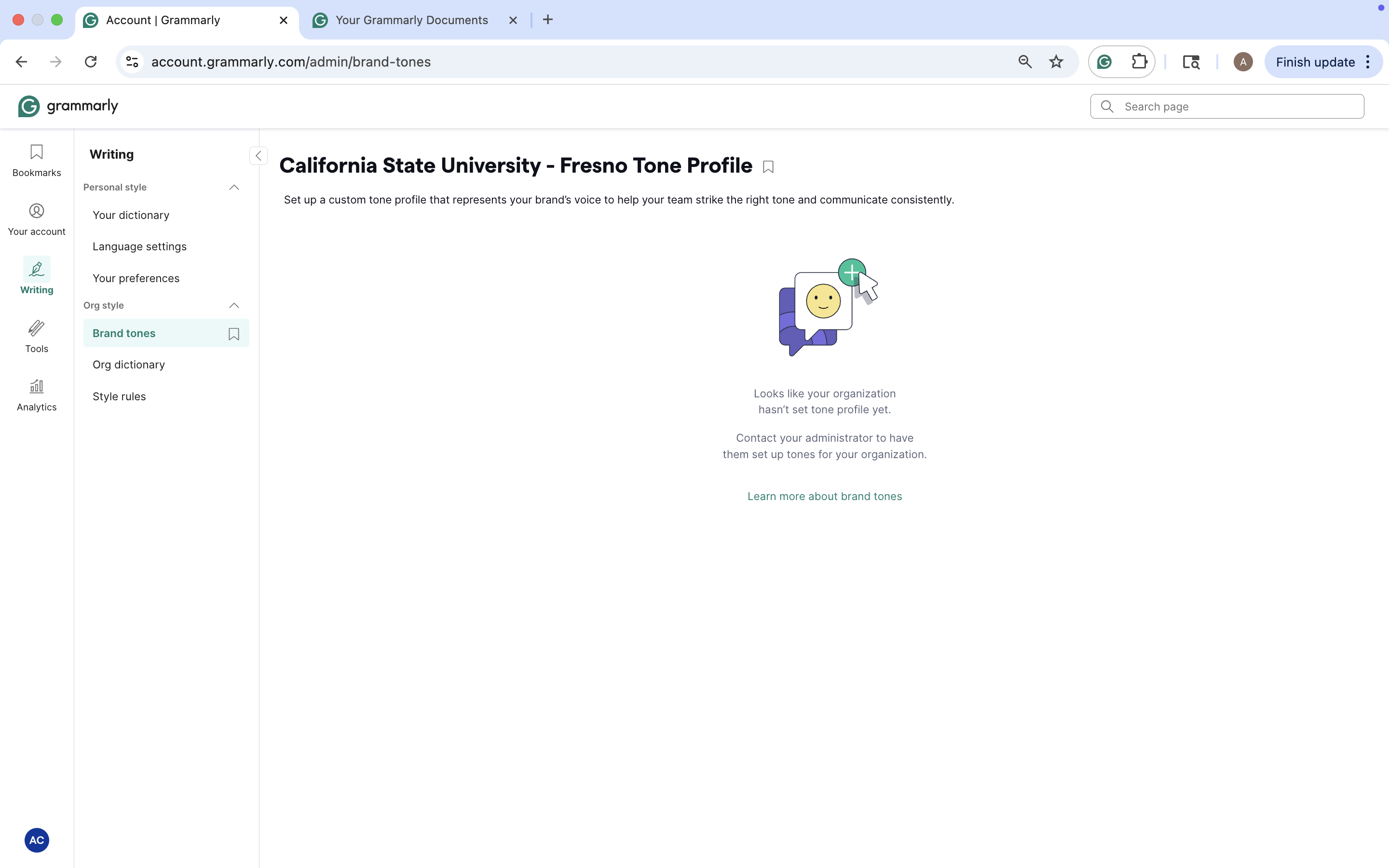
Brand Tones: View the custom tone profile set by your organization that aligns with their brand voice, maintaining consistent and appropriate communication across all written content.
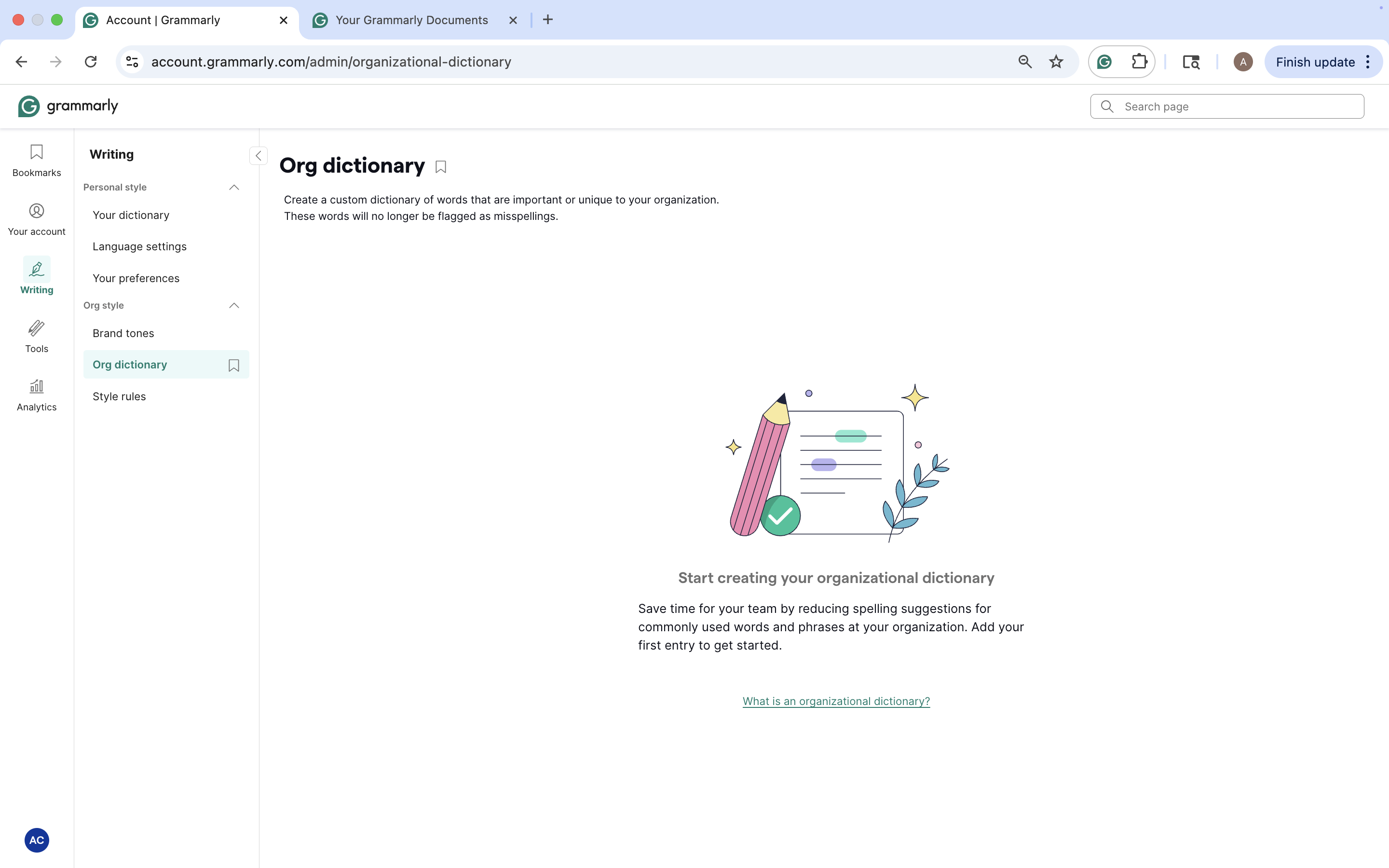
Org Dictionary: View a dictionary of important or frequently used terms set by the organization that are not flagged as misspellings across team documents.
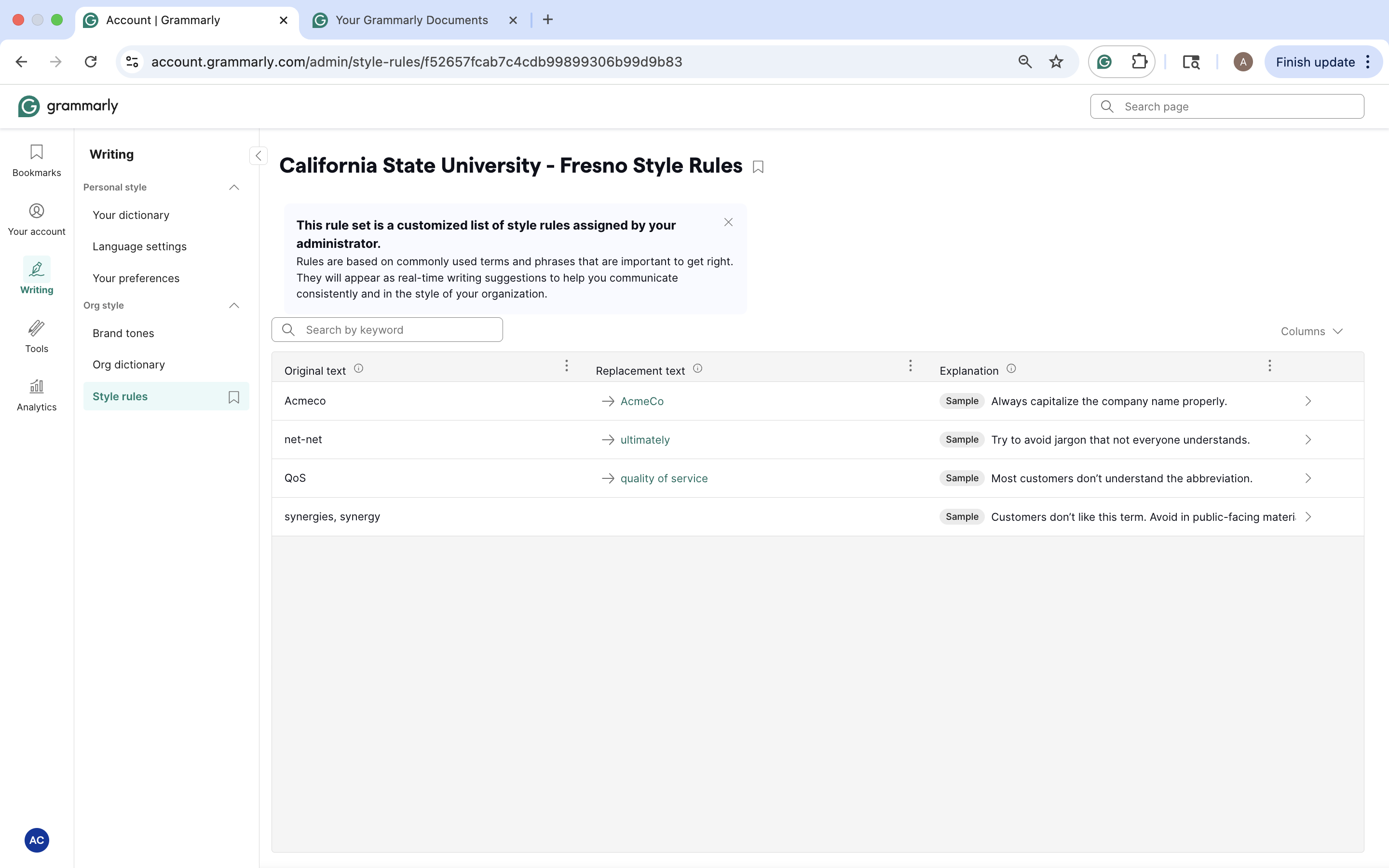
Style Rules: View a custom list of writing rules created by your organization to ensure clarity and consistency. It provides preferred replacements for specific terms and explains why the changes were recommended.
Snippets: Allows your organization to create reusable text shortcuts for common phrases, helping save time and ensure consistent.

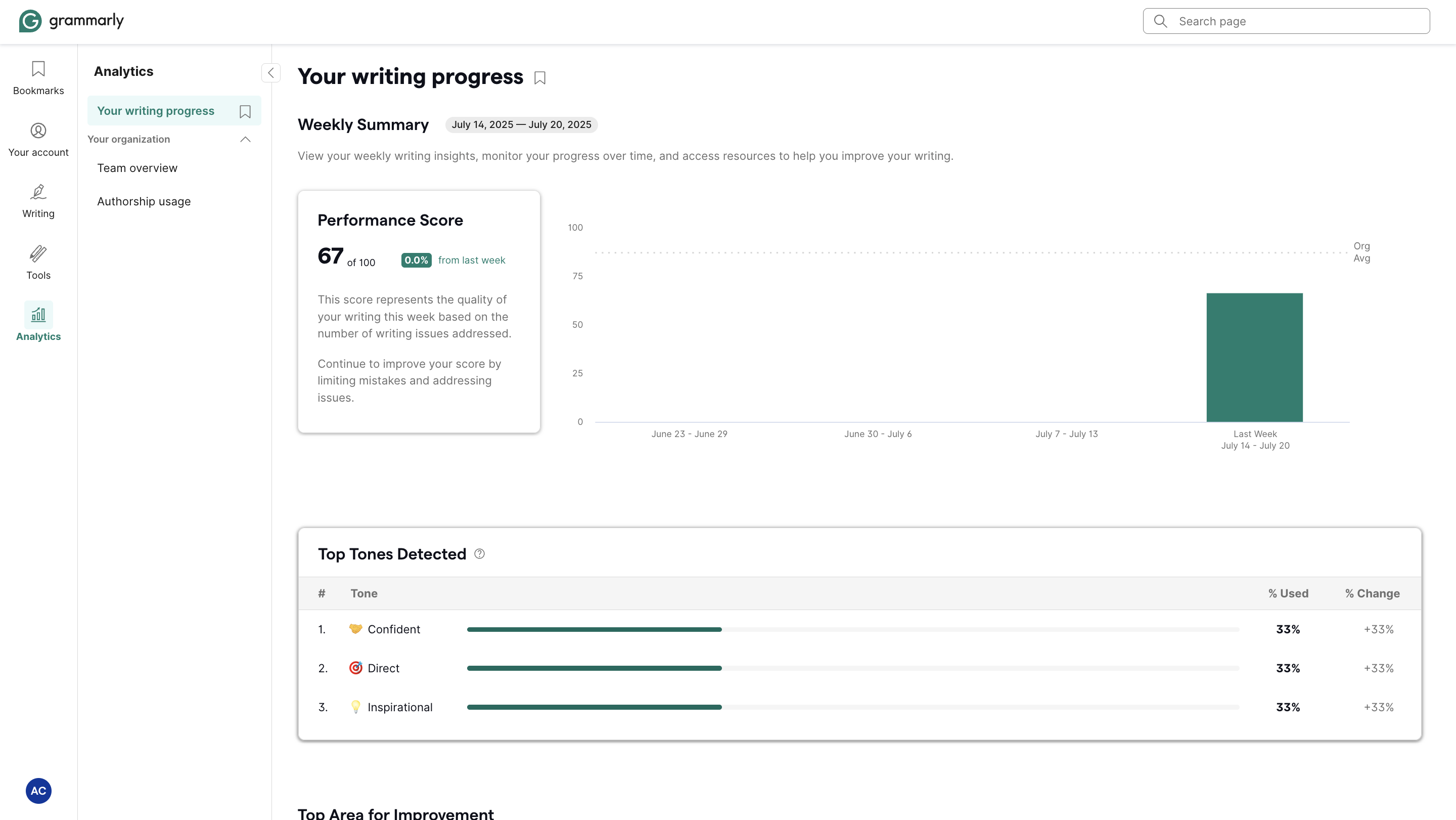
Your writing progress: View your weekly writing activity, offering insights into how your writing habits and performance evolve.
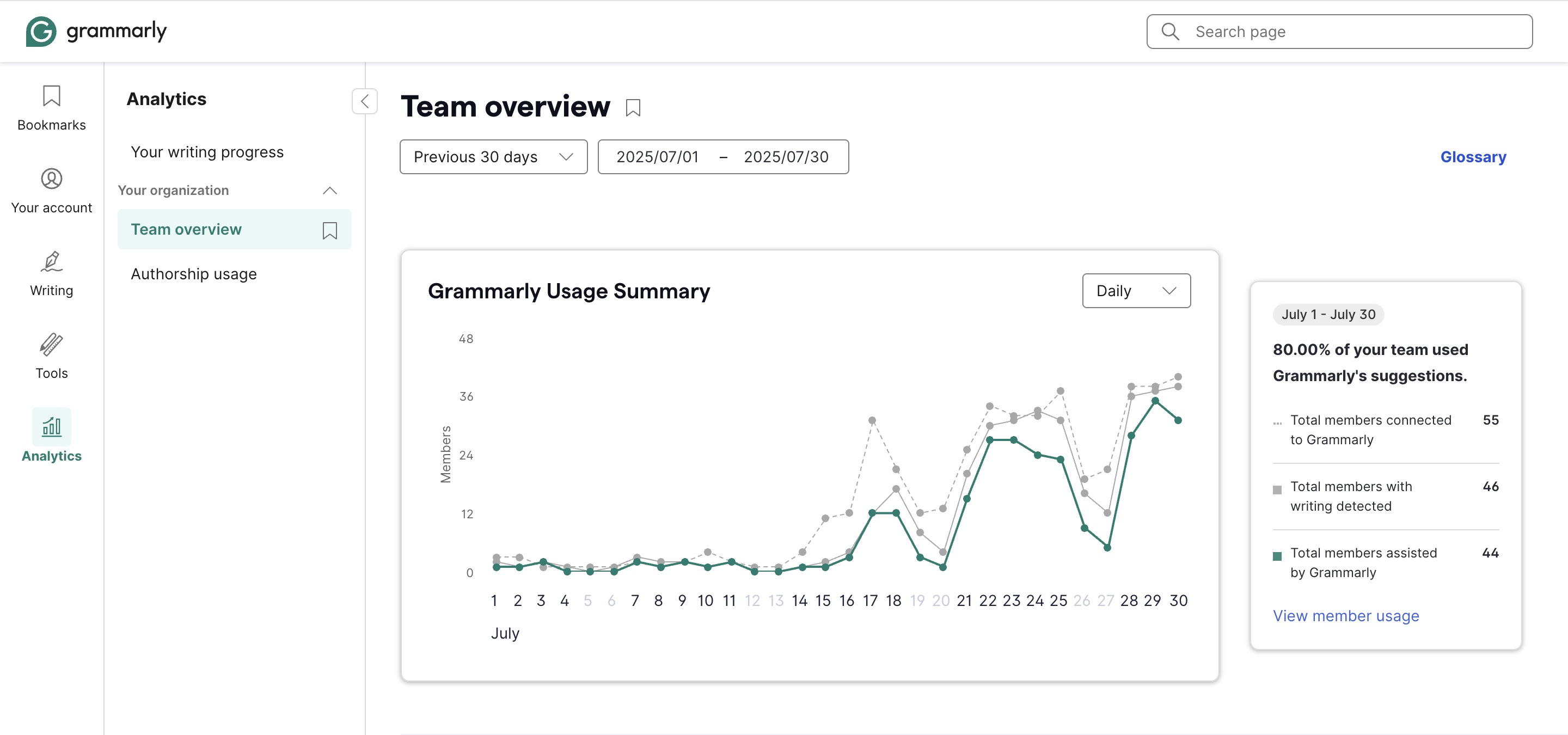
Team Overview: View an overview of your organization’s Grammarly usage, showing how many members are connected, actively writing, and receiving assistance from Grammarly. You can view trends over time, where members are using Grammarly most, what portion of the writing sessions have improved, what portion of suggestions were addressed, the top tones used, and Generative AI usage.
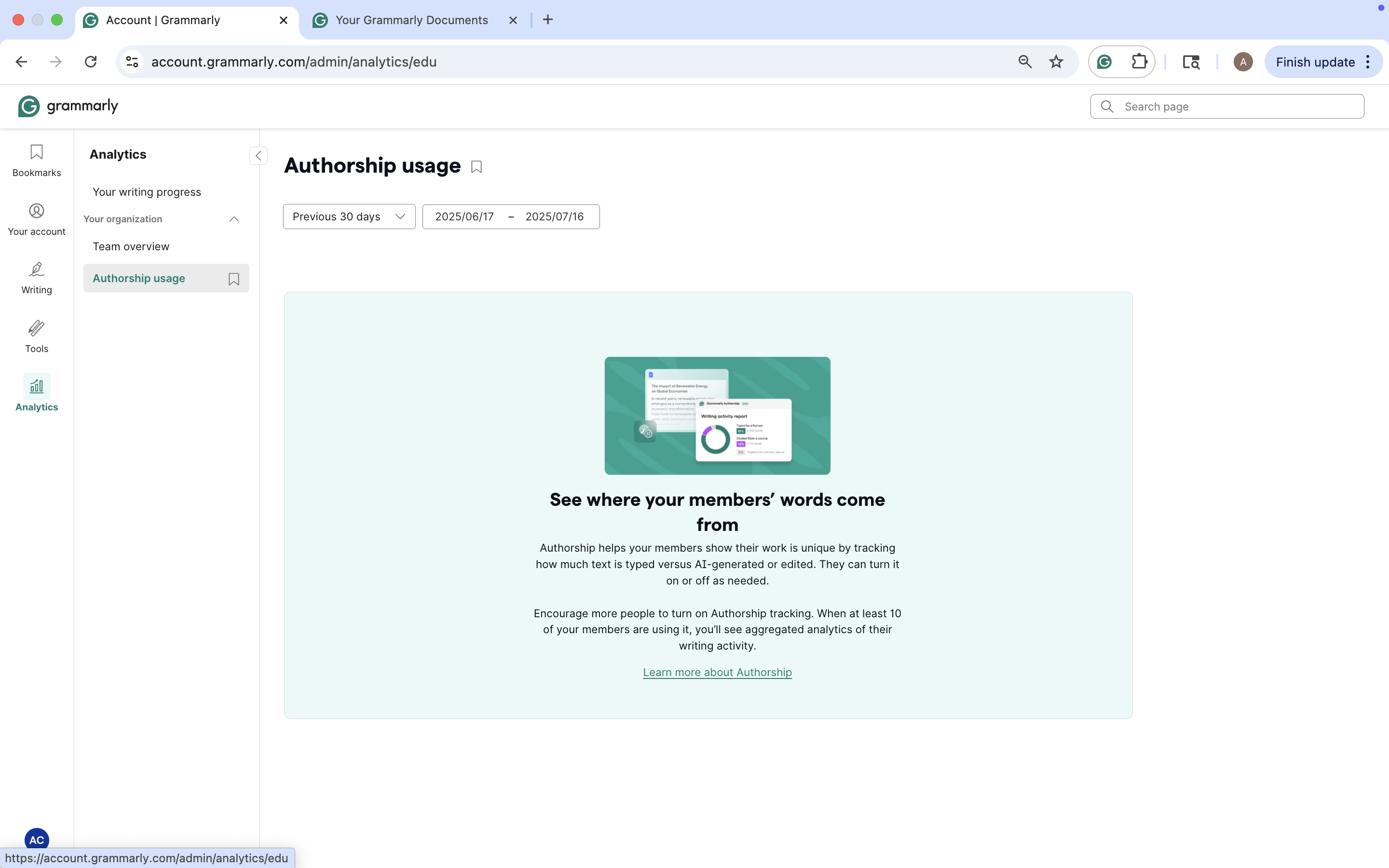
Authorship Usage: Tracks the origin of written content, emphasizing whether it was typed by a user or generated by AI. It provides insights into how users write and supports transparency in writing practices.
Grammarly Apps: The “Apps” section allows you to download Grammarly for desktop, install the mobile app on iOS or Android, or add browser extensions for Safari, Firefox, or Edge. Grammarly automatically recommends the appropriate browser extension based on the browser you are currently using. If a specific browser is not listed, you can manually visit Grammarly’s download page to install the extension for your preferred browser.
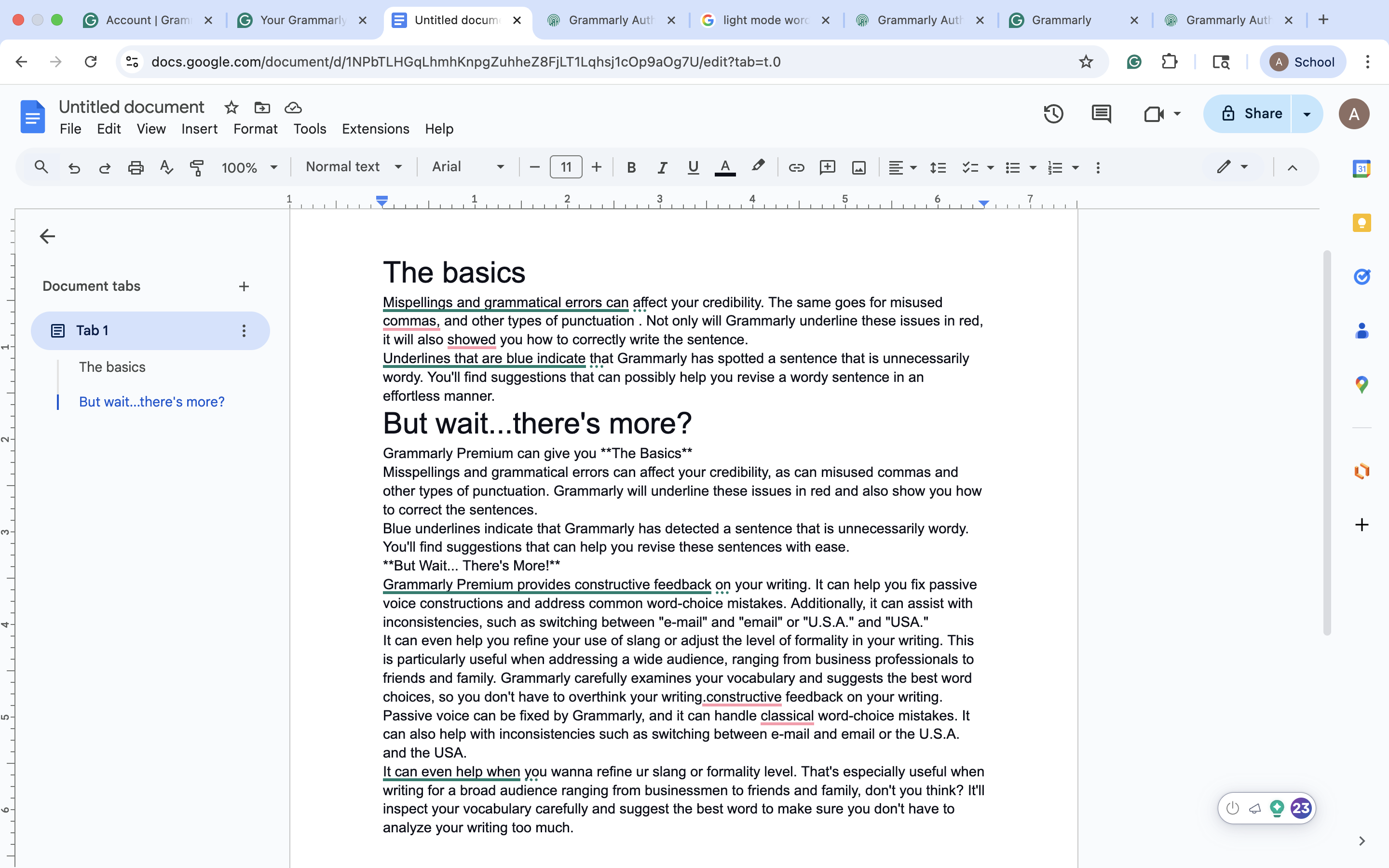
Grammarly Widget | Google Docs: When you have the Grammarly Desktop App installed and running on Windows and macOS, you will see the Grammarly widget, which gives you quick access to Grammarly’s suggestions and generative AI tools.
Rewrite with Grammarly: This feature gives you quick access to Grammarly's generative AI tools. With this tool, you can rewrite selected text for tone, clarity, conciseness, or professionalism, generate responses or suggestions based on your prompt, translate selected text, and access context-aware AI writing assistance to improve your writing.

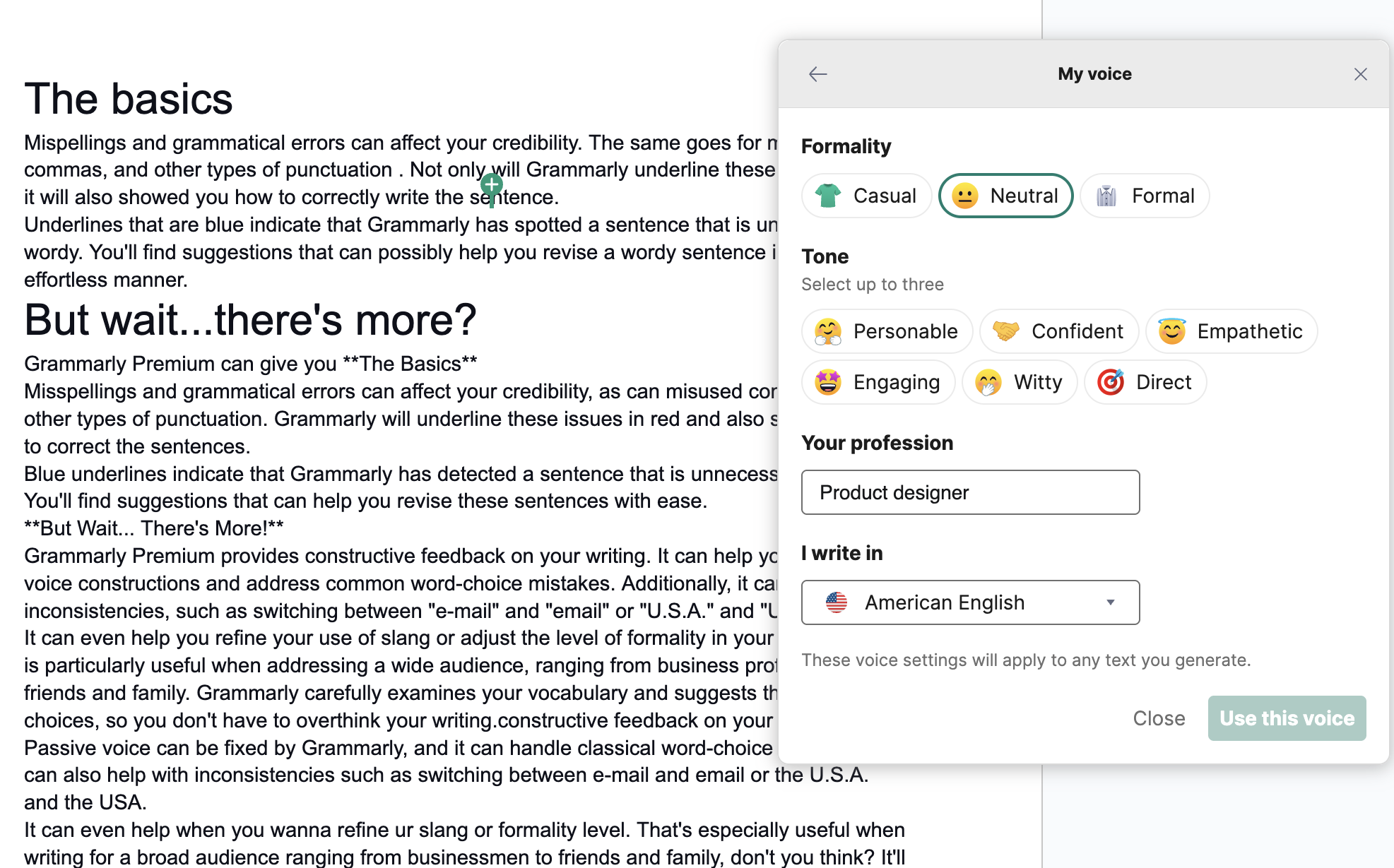
Set Your Voice: Allows you to personalize Grammarly’s generative AI suggestions based on your preferred writing style. You can adjust your formality level, select up to three tone traits, and specify your profession and language preference.
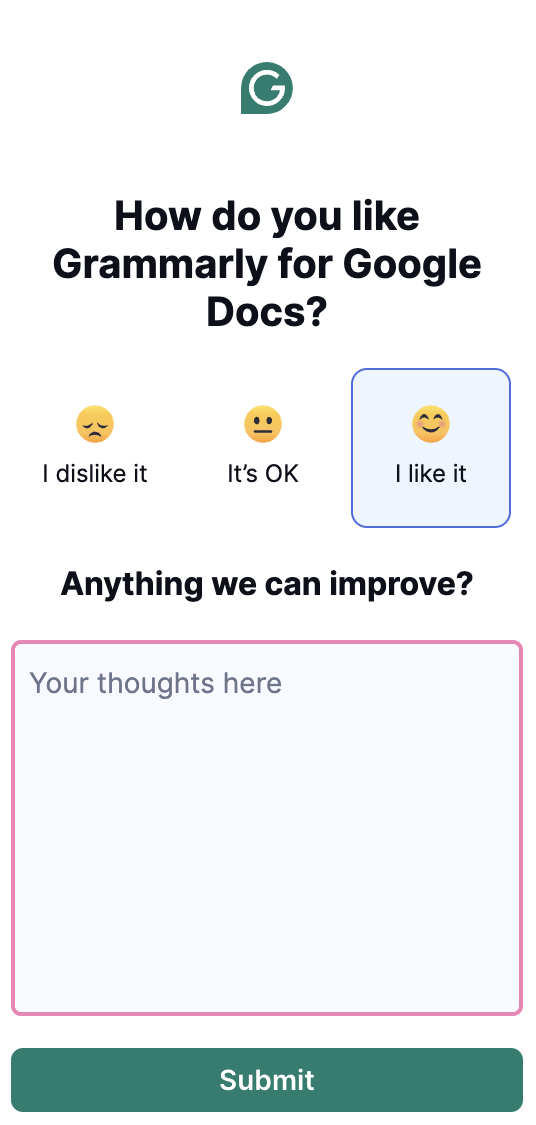
Leave Feedback: You can rate your experience with Grammarly for Google Docs. You can select from three options: “I dislike it,” “It’s OK, ” or “I like it.” Below the rating, you can leave comments in the “Anything we can improve?” box for further feedback.
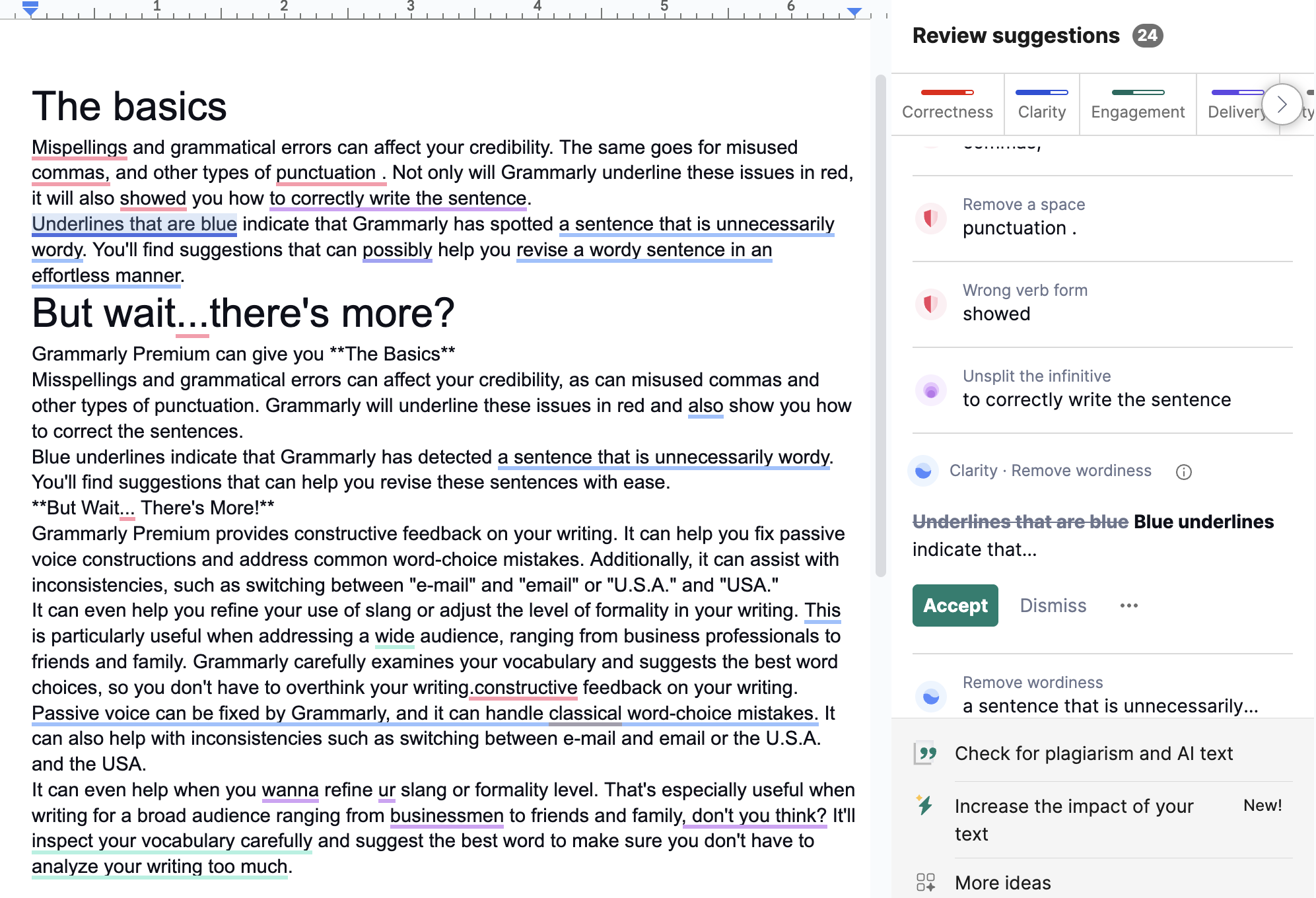
Review suggestions: The Review Suggestions panel provides real-time writing feedback organized into key categories: Correctness, Clarity, Engagement, Delivery, and Style Guide. Each suggestion includes a short explanation and options to Accept, Dismiss, or see more details.
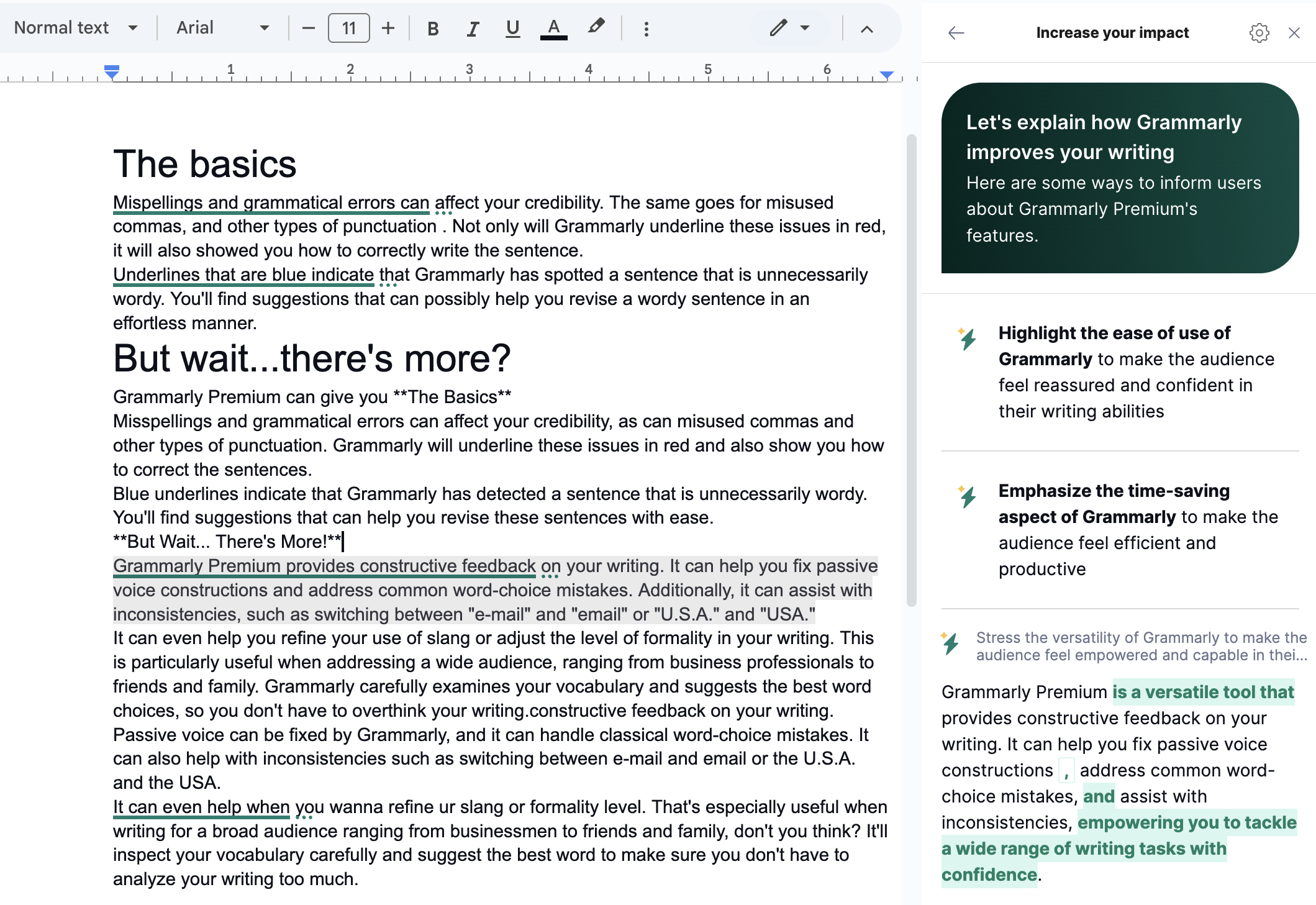
Increase Your Impact: Increase Your Impact offers personalized guidance to boost the overall effectiveness and persuasiveness of your writing. It highlights ways to improve tone, confidence, clarity, and audience engagement.
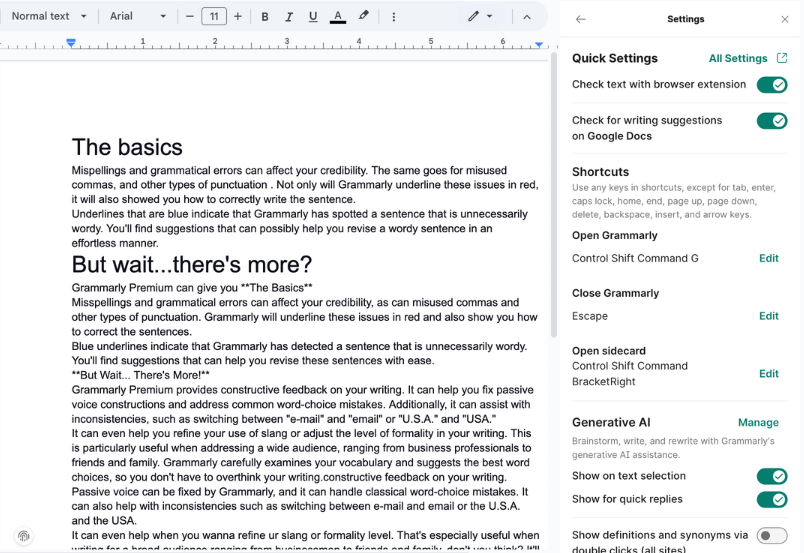
Settings Menu: The Setting Menu offers quick access to real-time suggestions on supported sites and customizable keyboard shortcuts. Furthermore, you can manage generative AI features, text selection tools, quick replies, and options such as double-click definitions, automatic spelling correction, English dialect preferences, and reader support.
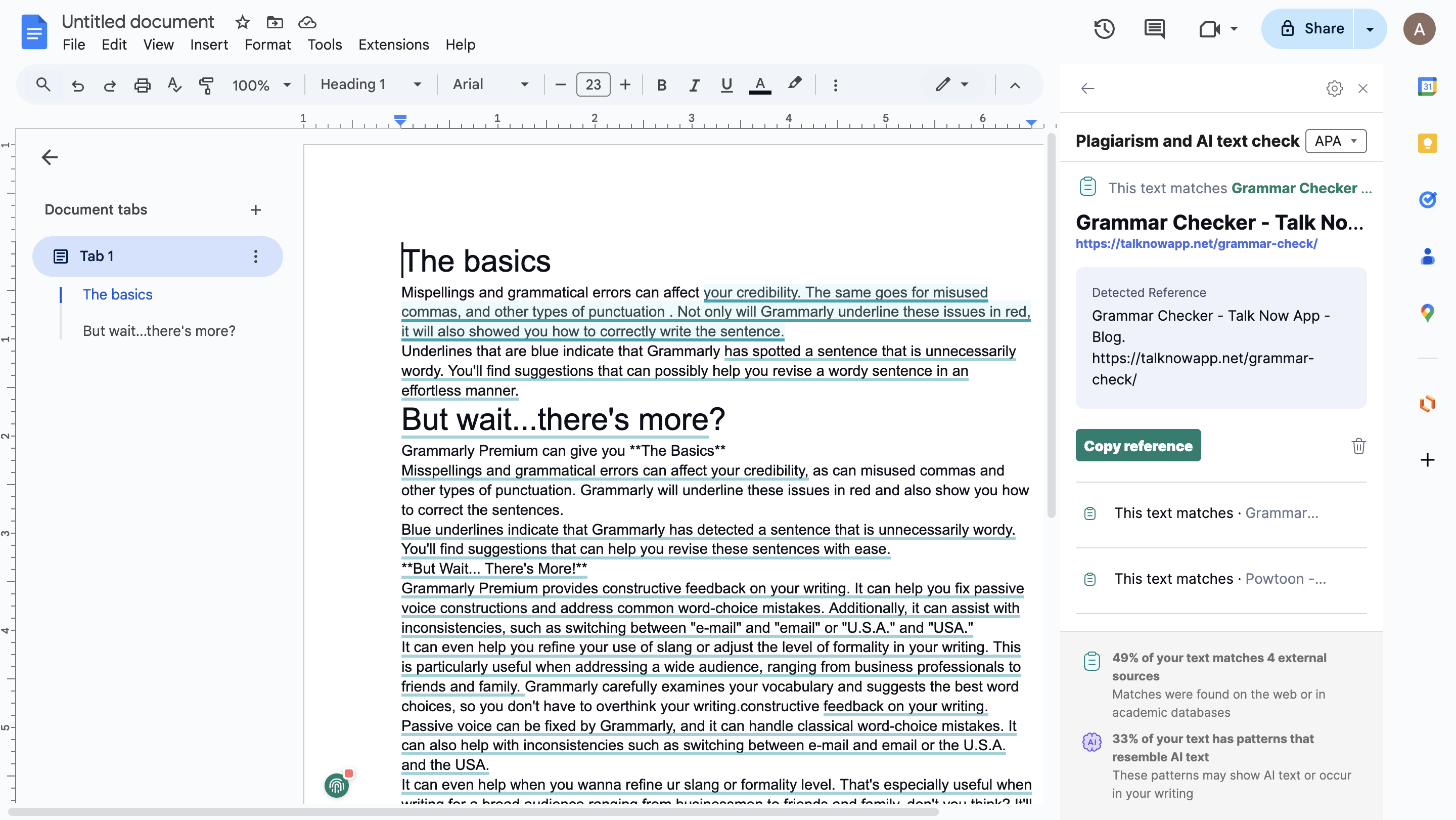
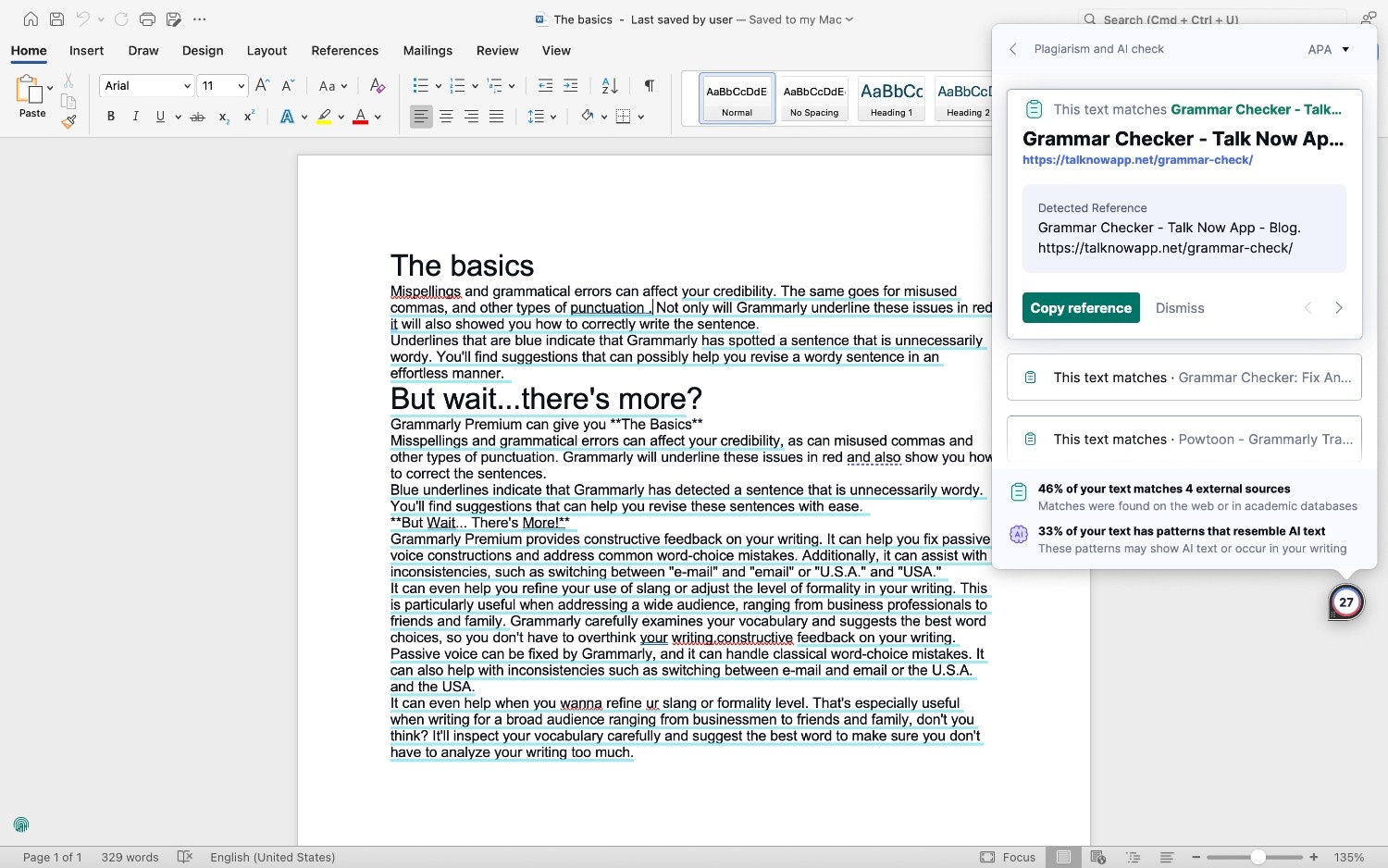
Plagiarism Detection: Grammarly’s plagiarism checker scans your text against billions of web pages and academic databases. It flags any matching content, provides source references, and calculates an originality score.
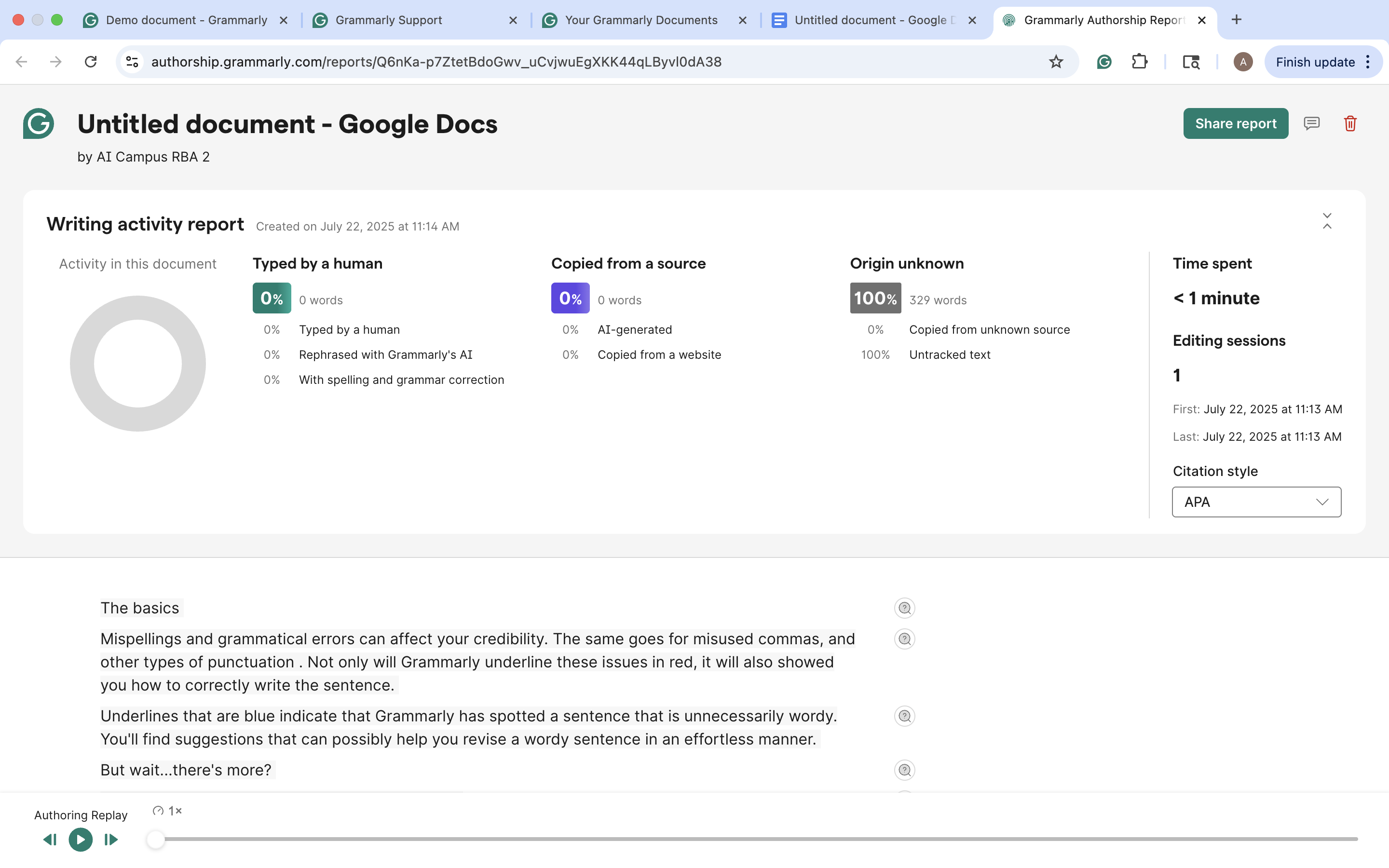
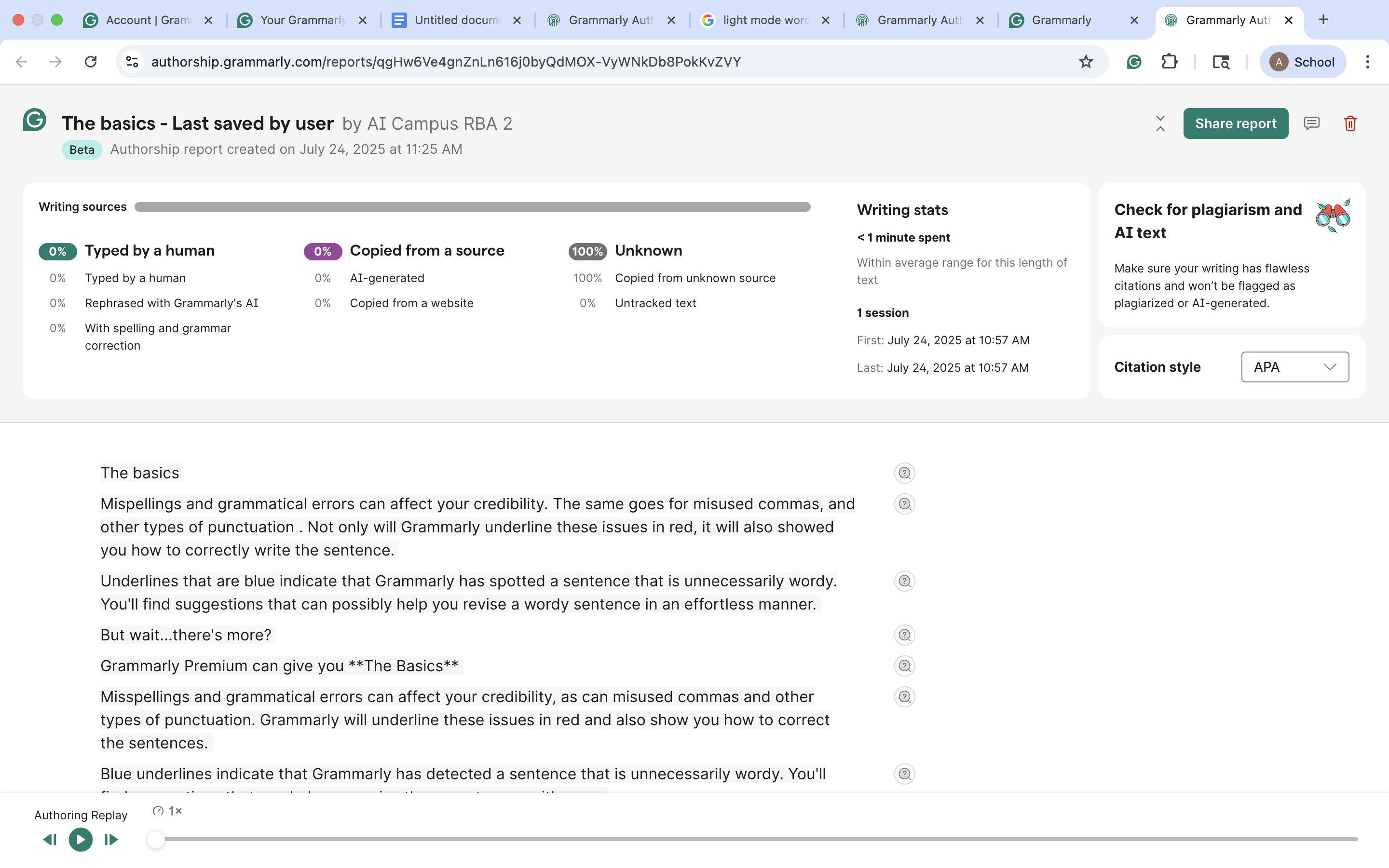
Authorship Tracking: Authorship helps distinguish whether content was typed by the user, pasted from elsewhere, or generated by AI. This feature generates a detailed report indicating the source of all content (human-written, AI-generated, grammar-edited, or externally sourced).
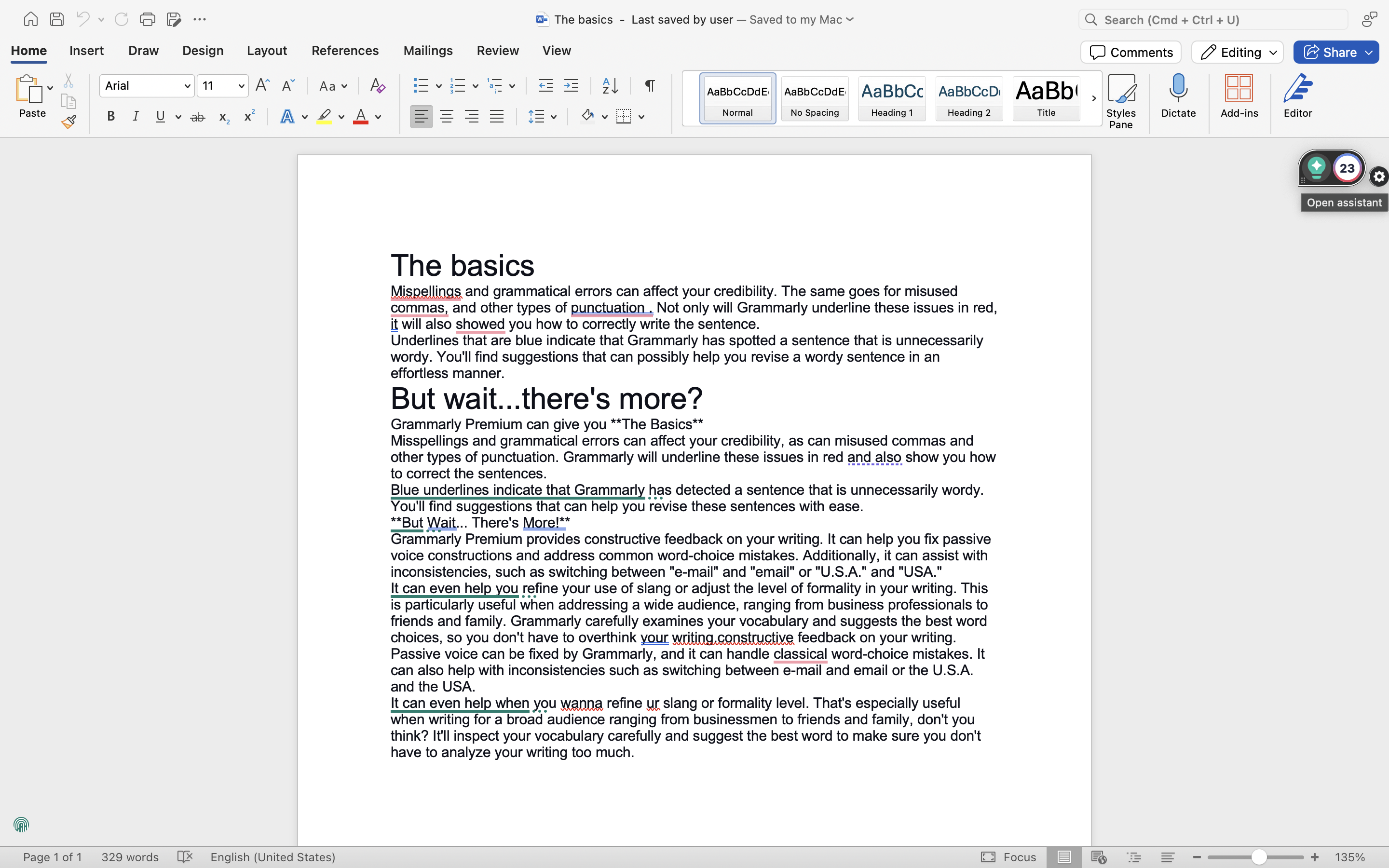
Grammarly Widget | Microsoft Word: When you have the Grammarly Desktop App installed and running on Windows and macOS, you will see the Grammarly widget, which gives you quick access to Grammarly’s suggestions and generative AI tools.
Rewrite with Grammarly: This feature gives you quick access to Grammarly's generative AI tools. With this tool, you can rewrite selected text for tone, clarity, conciseness, or professionalism, generate responses or suggestions based on your prompt, translate selected text, and access context-aware AI writing assistance to improve your writing.
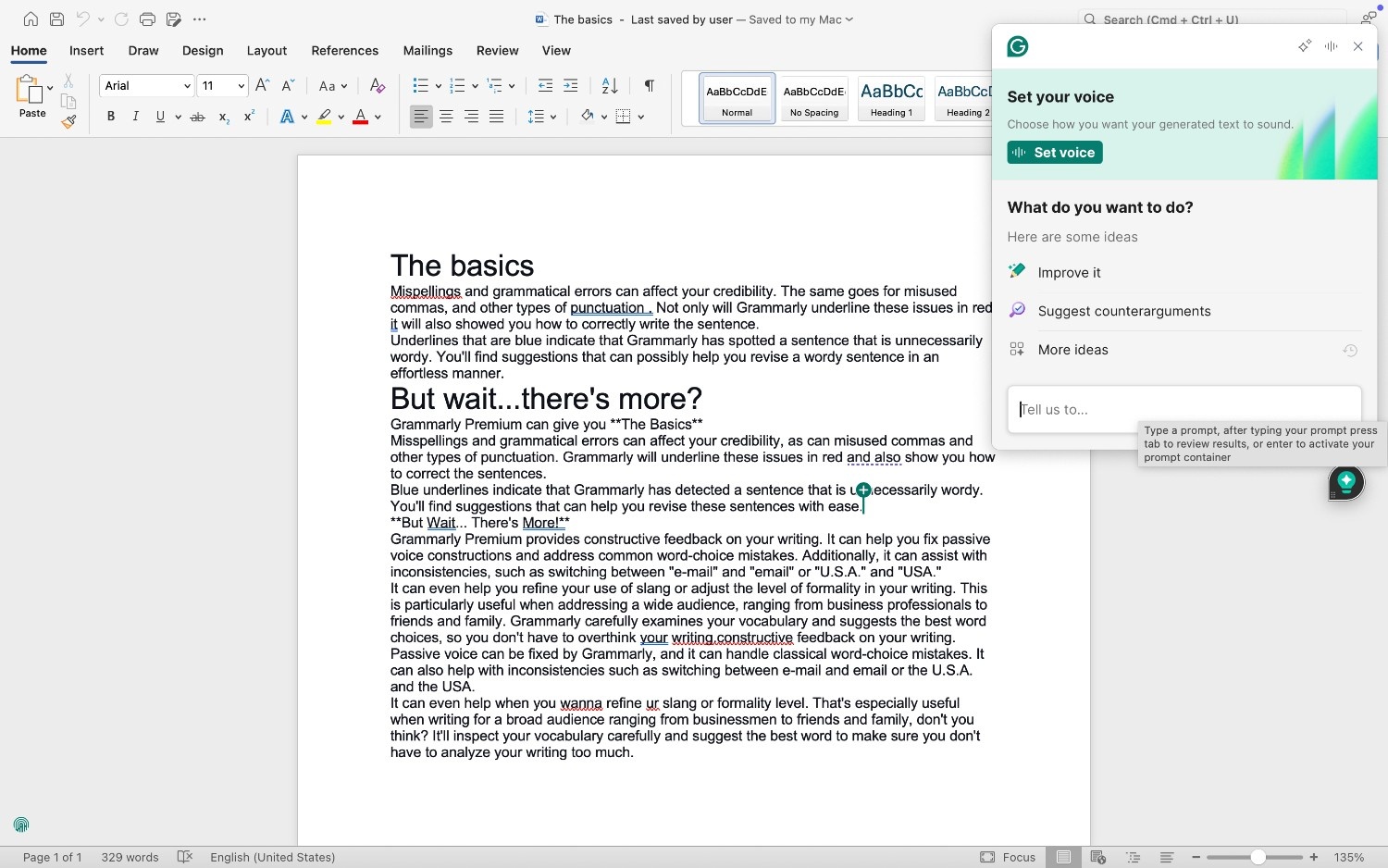
Set Your Voice: Allows you to personalize Grammarly’s generative AI suggestions based on your preferred writing style. You can adjust your formality level, select up to three tone traits, and specify your profession and language preference.
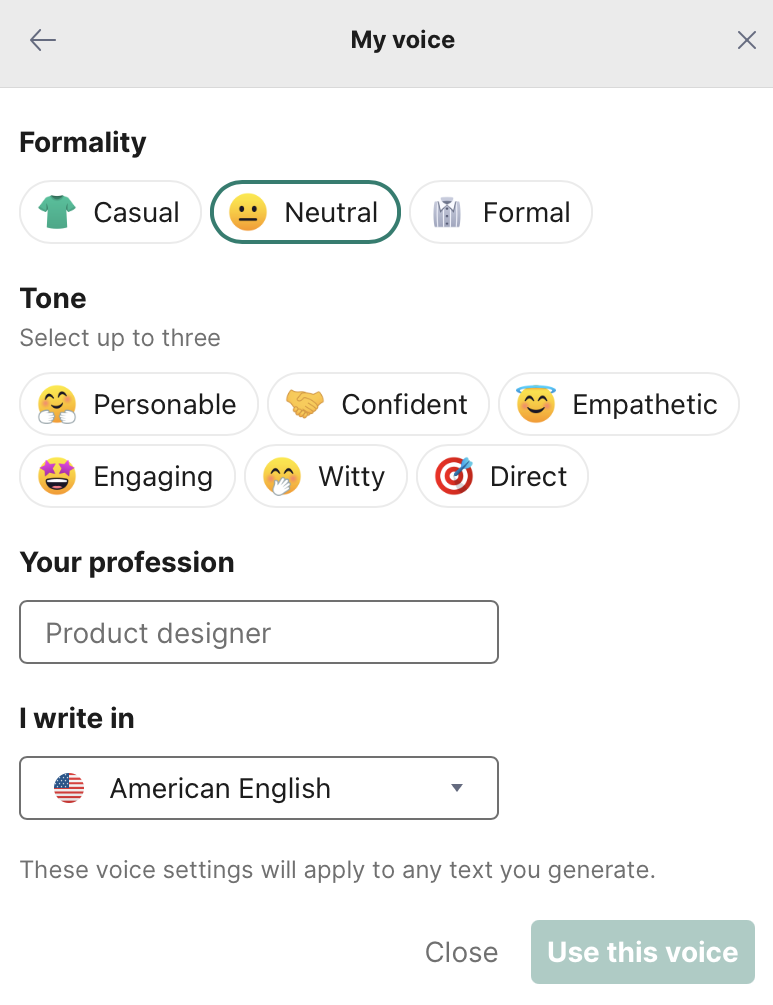
Leave Feedback: You can rate your experience with Grammarly for Microsoft Word. You can select from three options: “Dissatisfied,” “Neutral, ” or “Satisfied.” You can leave comments in the “Tell us why” box for feedback.
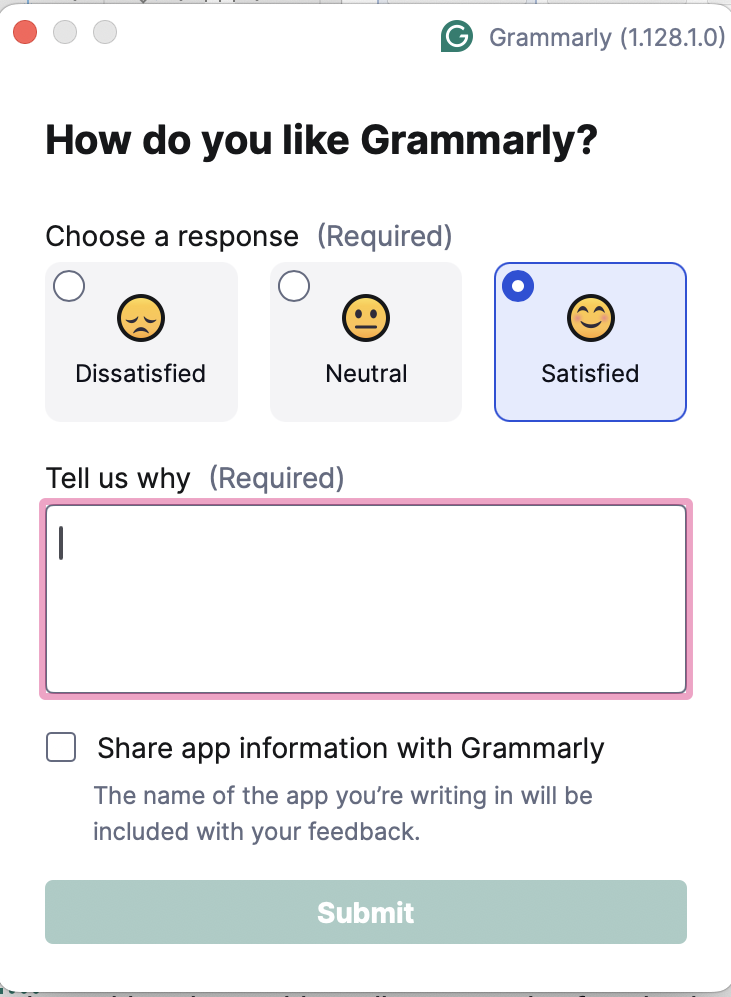
Review Suggestions: The Review Suggestions panel provides real-time writing feedback organized into key categories: Correctness, Clarity, Engagement, and Delivery. Each suggestion includes a short explanation and options to Accept, Dismiss, or see more details.

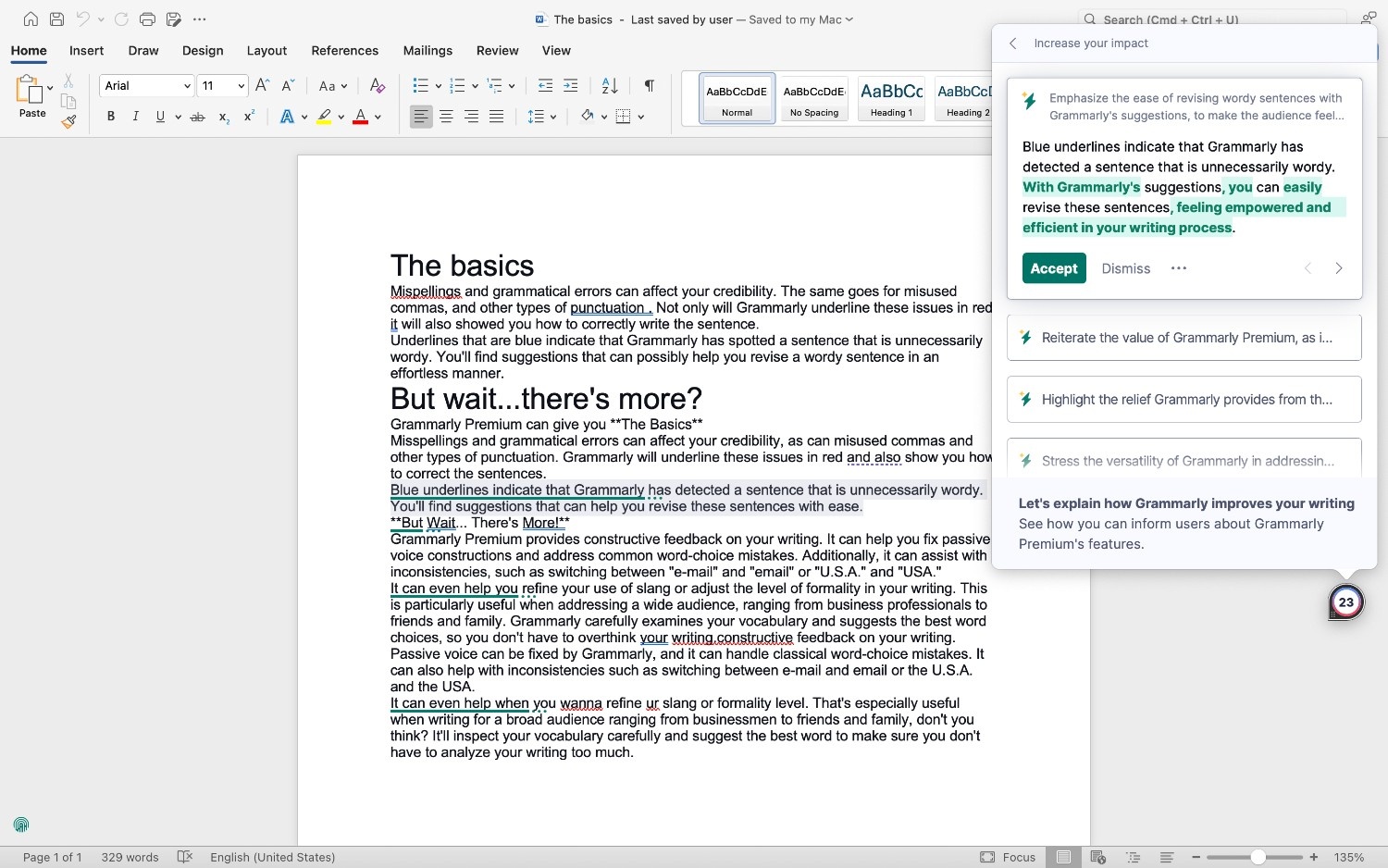
Increase Your Impact: Increase Your Impact offers personalized guidance to boost the overall effectiveness and persuasiveness of your writing. It highlights ways to improve tone, confidence, clarity, and audience engagement.
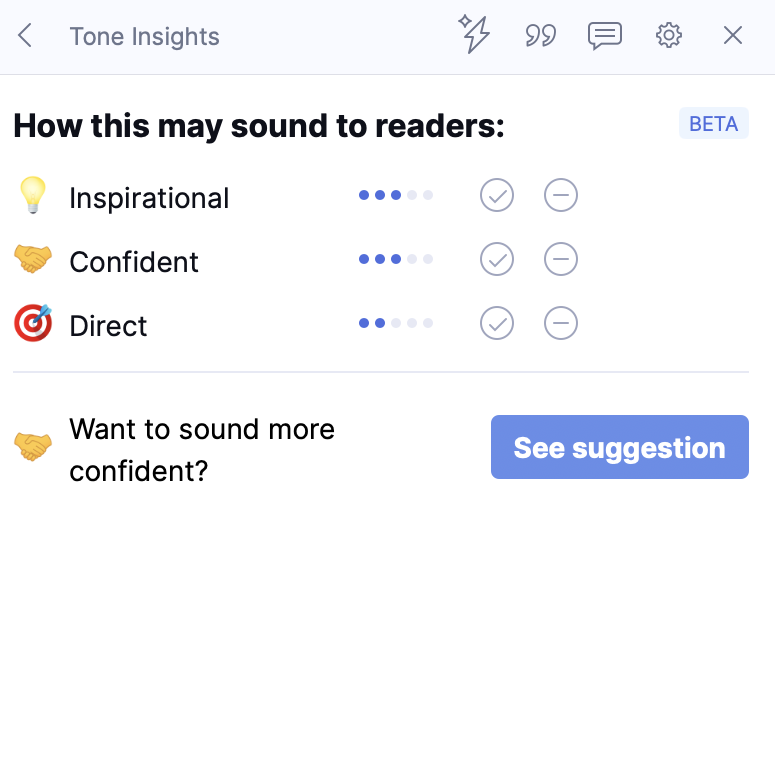
Tone Insights: Tone Insights helps you understand how your writing may sound to readers (confident, direct, or inspirational). It provides quick feedback and suggestions to better align your tone with your intent.
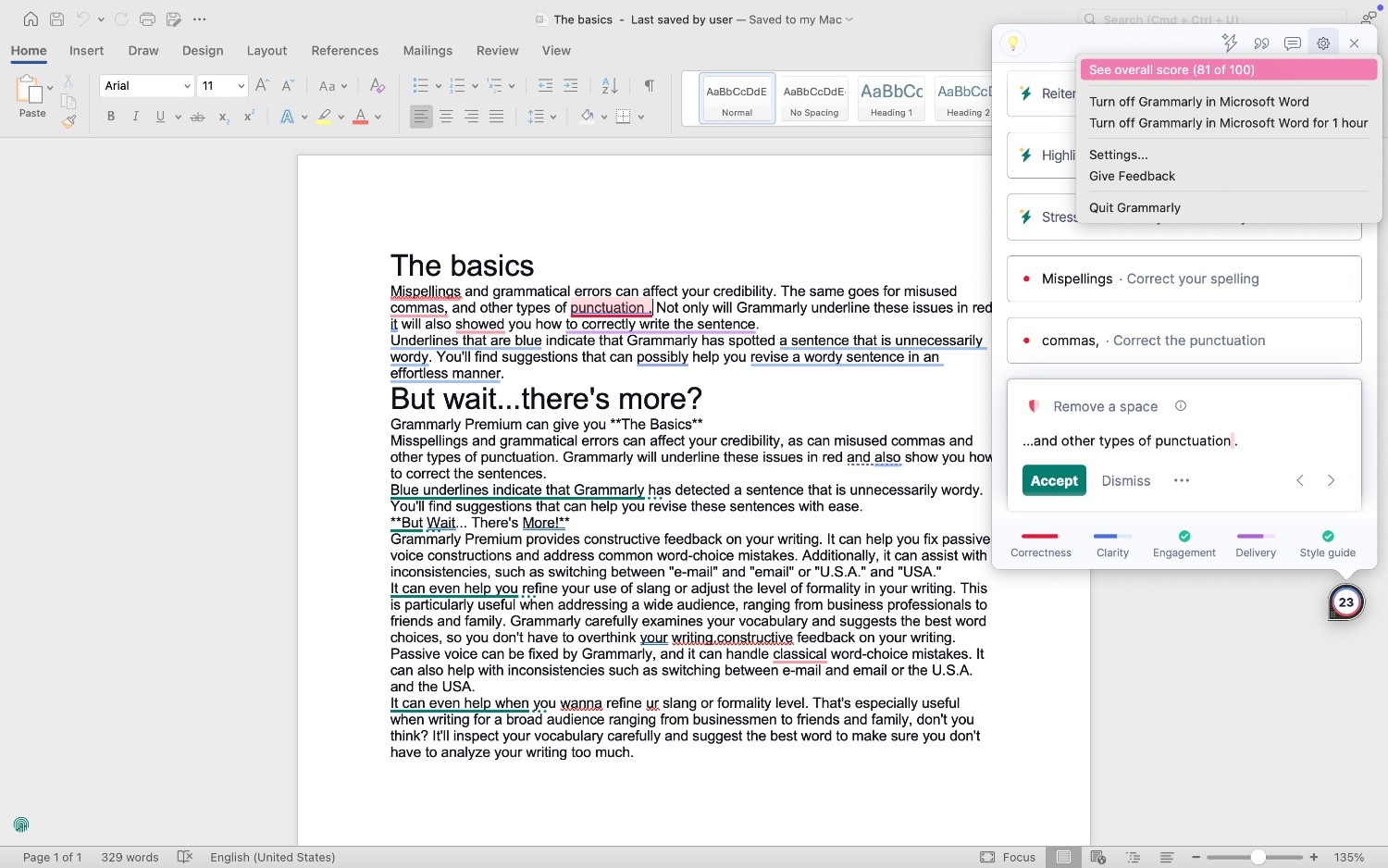
Settings Menu: Allows you to manage how Grammarly behaves within the application. The quick links include options like seeing the overall score of the document, turning Grammarly off, exploring the extended menu options, leaving feedback, and quitting Grammarly.
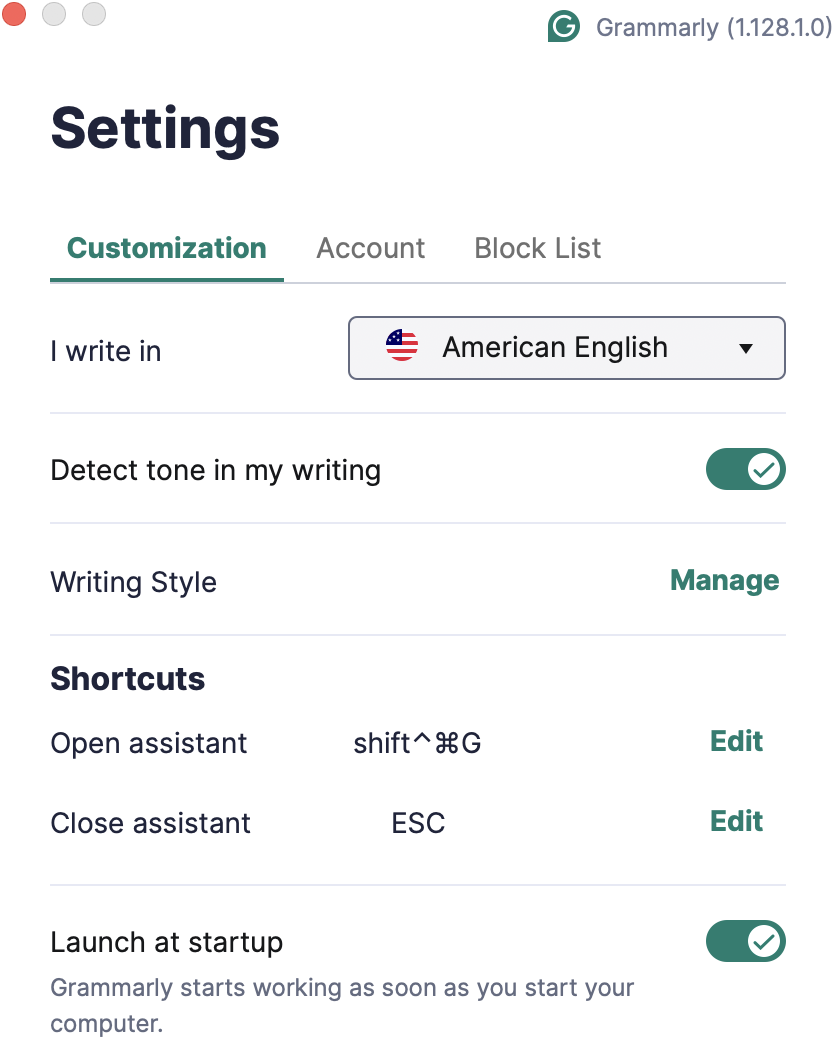
Customization Tab: Adjust your writing preferences, including language, tone detection, writing style, and shortcut keys. You can also enable Grammarly to launch at startup.
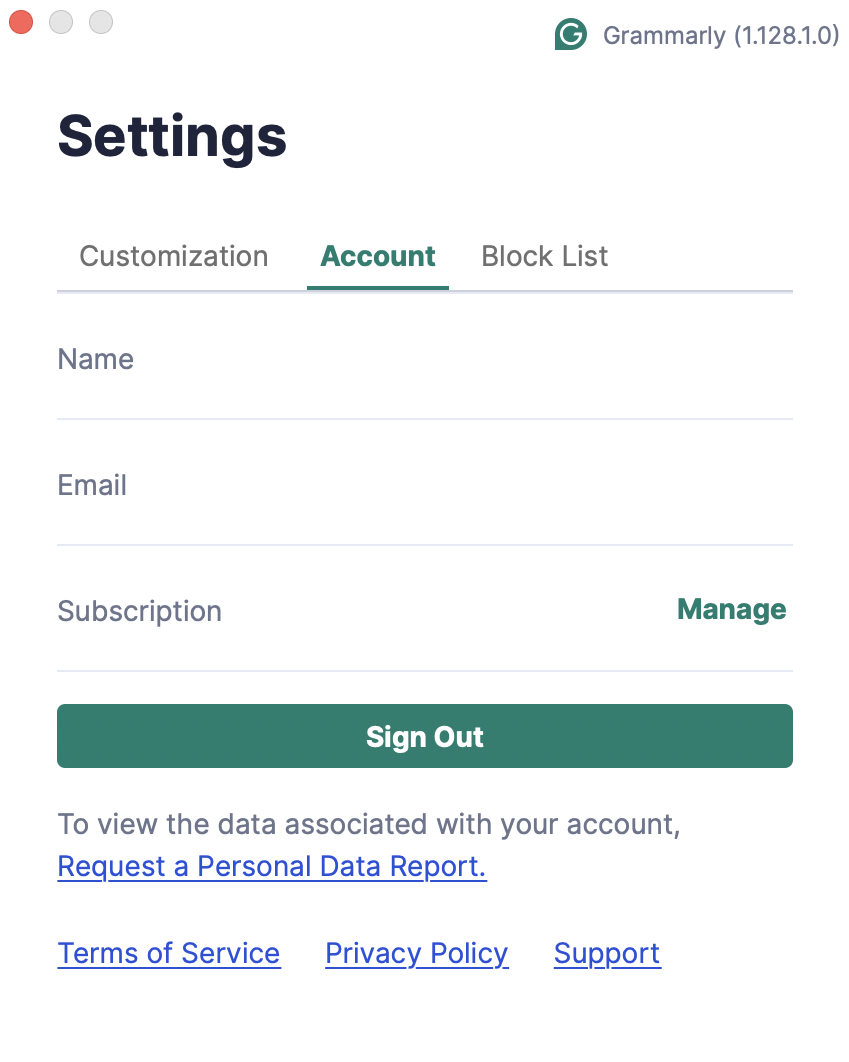
Account Tab: View your Grammarly account details, such as your name, email, and subscription type. From here, you can manage your plan, sign out, or request a personal data report.
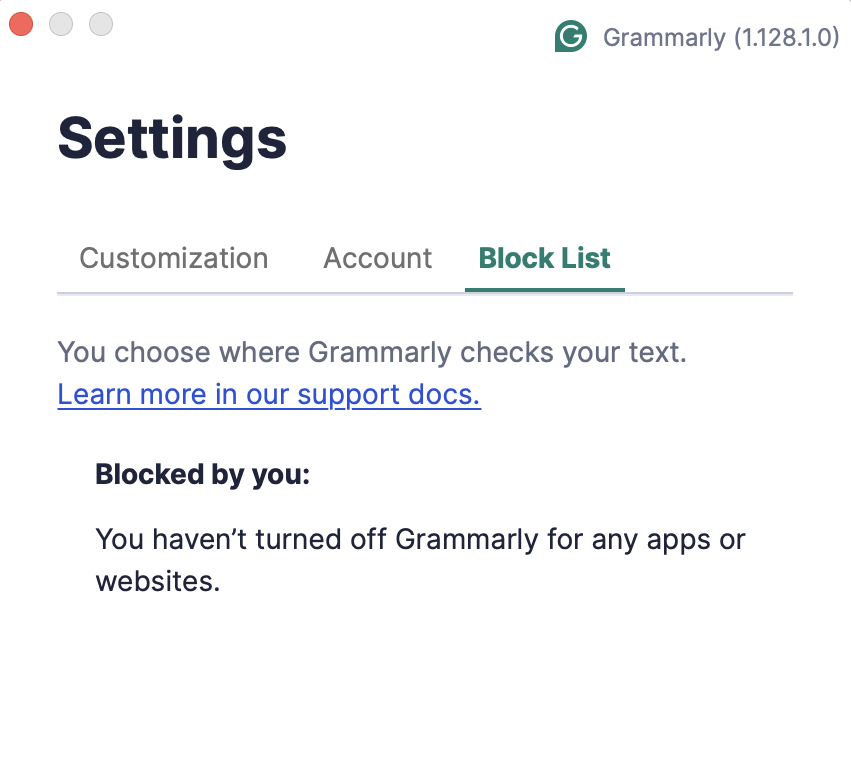
Block List Tab: Control where Grammarly is active. This tab shows any apps or websites where you’ve disabled Grammarly’s writing suggestions.
Plagiarism Detection: Grammarly’s plagiarism checker scans your text against billions of web pages and academic databases. It flags any matching content, provides source references, and calculates an originality score.
Authorship Tracking: Authorship helps distinguish whether content was typed by the user, pasted from elsewhere, or generated by AI. This feature generates a detailed report indicating the source of all content (human-written, AI-generated, grammar-edited, or externally sourced).
Grammarly Support: Grammarly Support provides help articles, troubleshooting tips, and contact information for technical issues, billing questions, or account assistance.