ChatGPT Edu for Fresno State
Sharing Your Custom GPT
This page provides guidance on how you can share your Custom GPTs within the Fresno State workspace. Whether you want to collaborate with a few colleagues or make your GPT available to the entire campus community, you’ll find the steps here to help you share responsibly, securely, and effectively.
Sharing Options
When publishing your Custom GPT, you can choose from different sharing permissions that determine who has access.
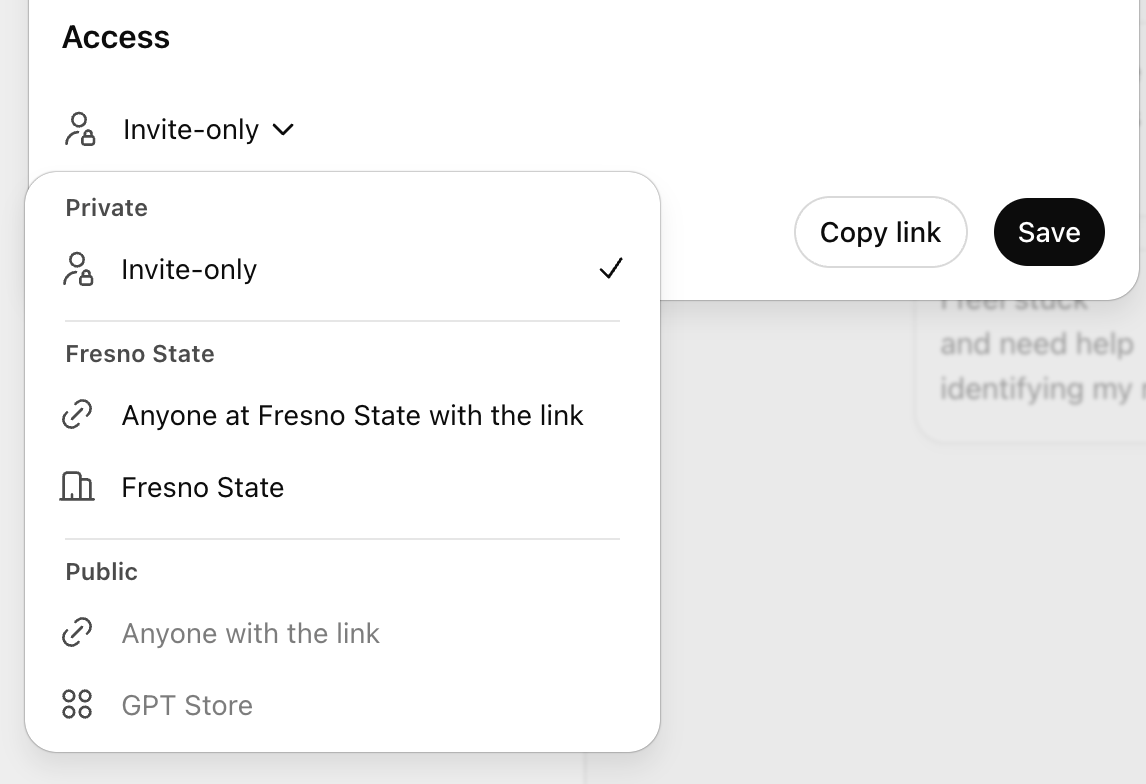
- Invite-only: This share option allows you to share your Custom GTP with specific individuals by sending them a private invite.
- Anyone at Fresno State with the link: This option allows you to generate a link that can be shared with anyone within the Fresno State organization. Only individuals who have received the link will be able to use the Custom GPT.
- Fresno State: This option will make your Custom GPT available to everyone within the Fresno State Workspace via the GPTs Menu.
How to Share Your Custom GPT
Sharing your Custom GPT is simple. Follow the steps below to choose the right sharing option and set the appropriate permissions so your GPT reaches the audience you intend
1. Enter Edit Mode for your Custom GPT.
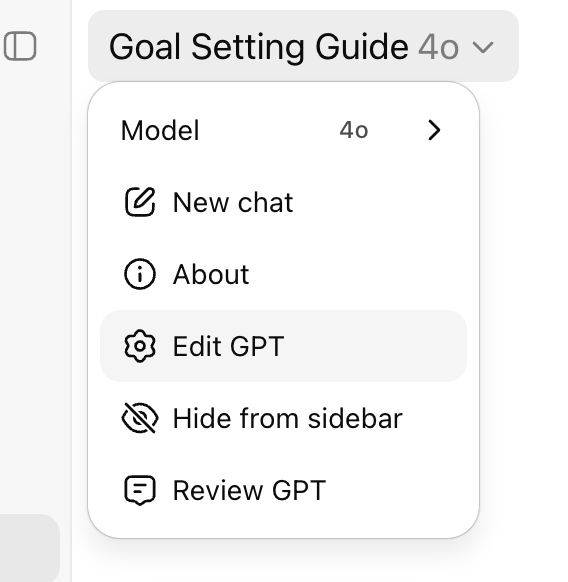
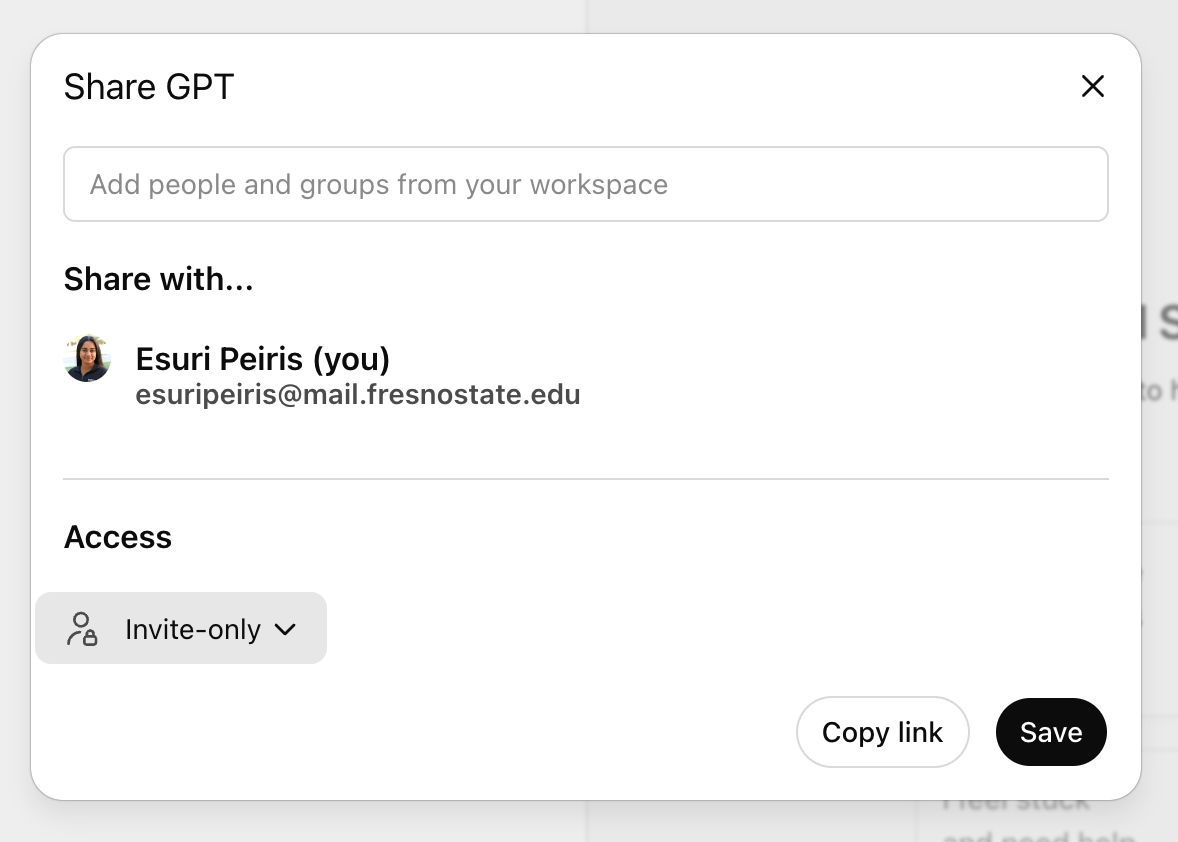
2. Click on Share.

3. Click on the dropdown under access. The default will be set to Invite-only.
4. Select your desired share preference, then click Save. Please note that Public share settings are not available at this time.
Review Guidance for Sharing Custom GPTs at Fresno State
To ensure Custom GPTs are shared in a way that supports innovation while protecting our community, we’ve outlined a few best practices. These guidelines will help you share your GPTs responsibly, securely, and in alignment with Fresno State’s values.
Review Guidance for Sharing Custom GPTs
* Please note: It may take up to 2 working days for requests to be processed.